Free Photo Editor Finder
Tell us how you shoot and edit, and we'll point you to the best truly-free tool — no paywalls, no watermarks.
Most photo editing apps promise "free" features but hide paywalls behind watermarks or limited exports. If you want a tool that costs nothing forever, you need to look at specific categories of software. This guide breaks down the editors that are genuinely free, without hidden fees, subscriptions, or trial periods.
We will cover desktop applications for serious work, mobile apps for quick fixes, and online tools for occasional use. By the end, you will know exactly which app fits your workflow without spending a rupee.
The Definition of "100% Free" in Software
Before picking an app, we must define what free actually means in this context. There are three types of cost-free software:
- Open Source: The code is public, anyone can modify it, and there is no license fee. Examples include GIMP and Krita.
- Freeware: Proprietary software that is free to use but not modifiable. The company may change terms later. Examples include Canva (limited) and some Adobe web tools.
- Trialware: Free for 7-30 days, then paid. These are NOT 100% free.
For this article, we only recommend Open Source or permanent Freeware options. Avoid anything requiring a credit card for sign-up, as that usually signals a future charge.
Best Desktop Editors for Serious Work
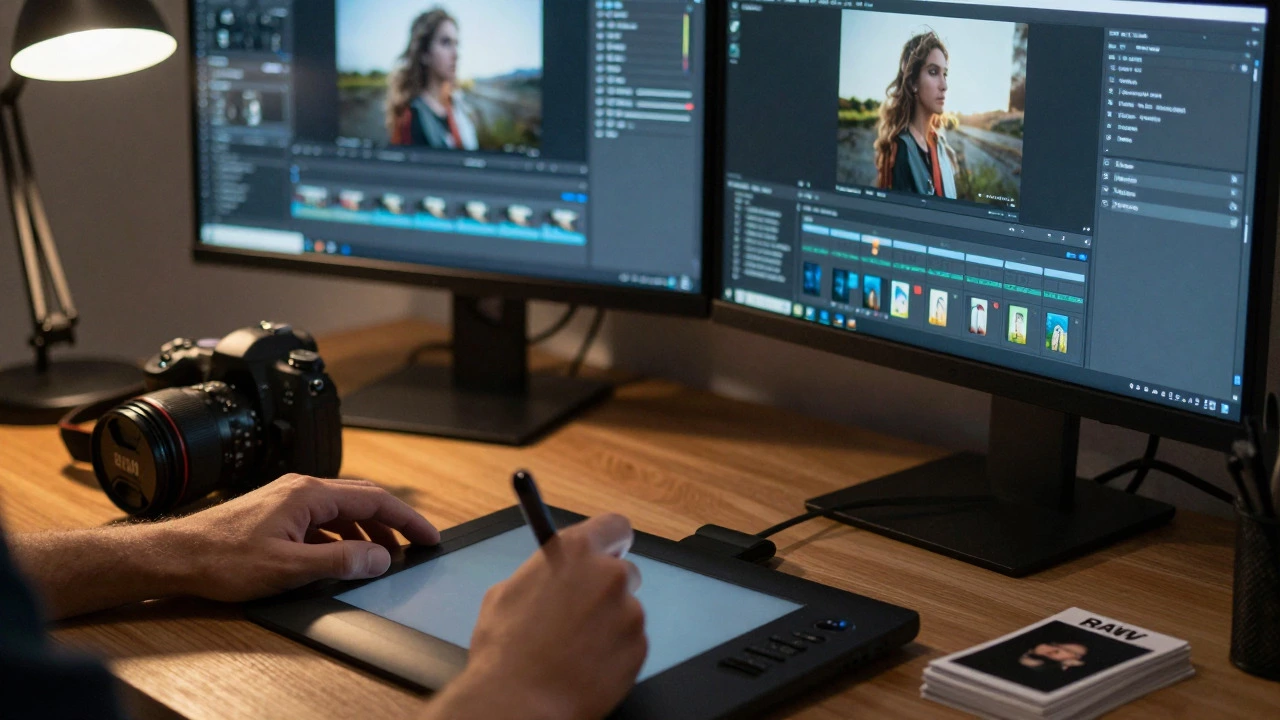
If you edit RAW files, manage large libraries, or do retouching, you need a desktop app. Here are the top contenders that cost zero.
GIMP: The Photoshop Alternative
GIMP is a powerful, open-source raster graphics editor used for image retouching, composition, and authoring. It has been around since 1996 and supports layers, masks, channels, and paths just like commercial rivals. You can install it on Windows, macOS, and Linux for free. The interface looks dated compared to modern apps, but the functionality is deep. If you learn shortcuts, you can perform complex composites without paying for Adobe Creative Cloud.
Krita: Best for Digital Painting and Retouching
Krita is a professional digital painting application focused on comic book and concept art creation. While often associated with illustration, its retouching tools are excellent for photographers who add creative elements. It handles high-resolution images well and offers a clean, modern interface. Unlike GIMP, Krita feels more intuitive for beginners because the layout is less cluttered.
Digikam: The Free DAM Solution
Digikam is an open-source digital asset management (DAM) and photo editing suite for Linux and Windows. If you shoot thousands of photos a year, Digikam manages your library, tags, ratings, and basic edits in one place. It replaces Lightroom’s catalog features completely for free. The editing module is decent for color correction but lacks the advanced masking tools of GIMP.
Best Mobile Apps for Quick Edits
Mobile editing is different. You rarely need layer-based compositing. You need filters, exposure controls, and cropping. Here is where you find truly free mobile options.
Snapseed: The Google Gem
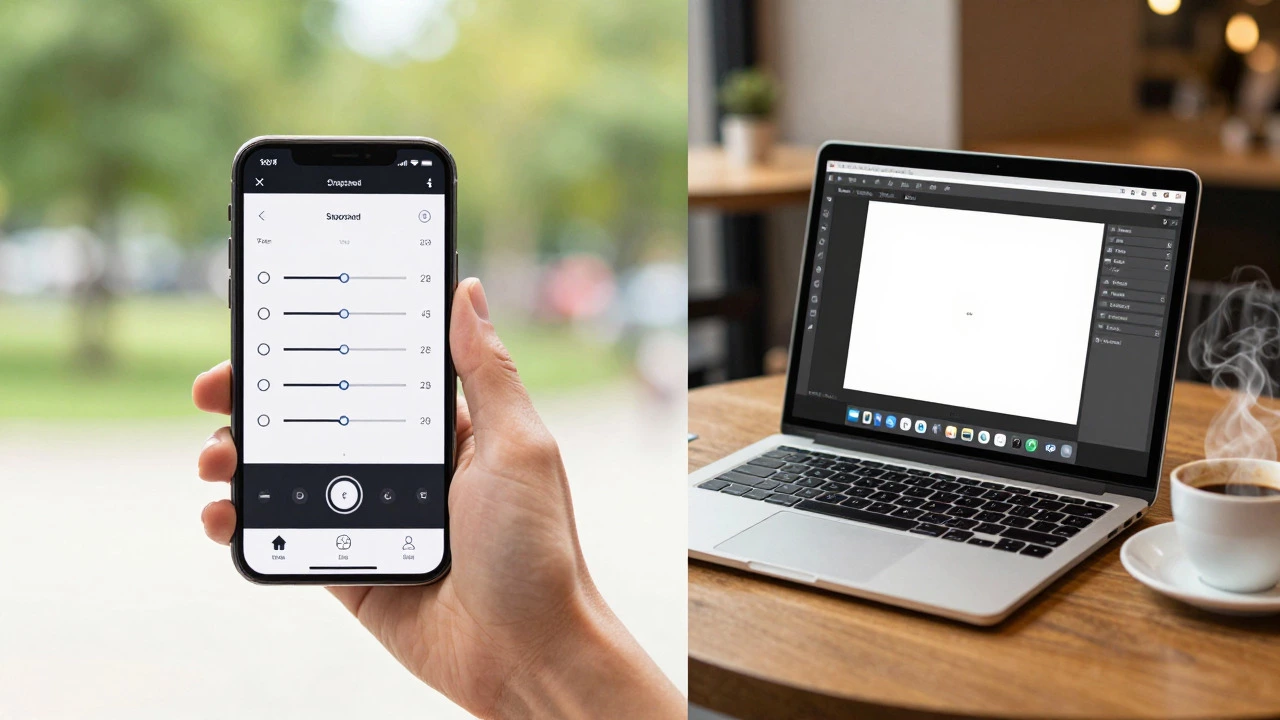
Snapseed is a mobile photo editing app developed by Google, known for its non-destructive editing and precise adjustment tools. Available on iOS and Android, Snapseed has no ads, no watermark, and no premium tier. It includes tools like "Healing," "Perspective," and "Double Exposure." For casual shooters, this is the best free option on any smartphone. It processes images locally, so your privacy stays intact.
Darktable: Pro Tools on Your Phone
Darktable is an open-source photography workflow application and raw image developer, available on both desktop and mobile platforms. The mobile version is surprisingly capable. It imports RAW files directly from your camera roll. If you shoot in RAW and want professional color grading on the go, Darktable is the only truly free option that competes with paid apps like VSCO or Halide.
Online Editors Without Watermarks
Cloud-based editors are convenient but often trap users in subscription models. However, a few remain free.
Photopea: The Browser-Based Photoshop
Photopea is a free online image editor that mimics the user interface and file formats of Adobe Photoshop. It runs in your browser. You can open PSD, XCF, and TIFF files. The catch? Ads appear on the screen, but they never touch your canvas. You can export PNGs and JPGs without watermarks. For quick fixes when you don’t have software installed, Photopea is unbeatable.
Canva: Limited but Useful
Canva is a graphic design platform that uses drag-and-drop editing, primarily for social media graphics and presentations. Canva is freeware, not open source. Many templates and assets are locked behind Pro. But if you stick to the free library, you can create social posts without watermarks. Just be careful: some fonts and icons are paid. Check the price tag icon before exporting.
Comparison Table: Free vs. Paid Features
| App Name | Type | Platform | RAW Support | Watermark on Export | Best For |
|---|---|---|---|---|---|
| GIMP | Open Source | Desktop | Yes (via plugins) | No | Complex retouching |
| Krita | Open Source | Desktop | Limited | No | Digital painting & light retouch |
| Snapseed | Freeware | Mobile | No | No | Quick mobile edits |
| Darktable | Open Source | Desktop/Mobile | Yes | No | RAW development |
| Photopea | Freeware | Web | Yes | No | Browser-based Photoshop alternative |
Common Pitfalls to Avoid
Even when choosing free tools, you can fall into traps. Watch out for these:
- Asset Locks: In Canva or similar sites, the editor is free, but the specific font or sticker costs money. Always check individual asset prices.
- Export Limits: Some free tiers limit resolution to 72 DPI. Check export settings before finishing your work.
- Plugin Fees: GIMP is free, but some third-party plugins cost money. Stick to built-in tools to stay 100% free.
- Account Requirements: If an app demands email verification and a password, it likely tracks usage. Open-source apps like GIMP and Krita require no account.
Choosing the Right Tool for Your Workflow
Your choice depends on how you shoot and edit. Here is a simple decision path:
- If you shoot JPEGs on your phone: Use Snapseed. It is fast, private, and feature-rich.
- If you shoot RAW on a DSLR/Mirrorless: Use Darktable for color grading, then GIMP for retouching.
- If you need to share designs quickly: Use Photopea in your browser. No installation needed.
- If you manage a huge photo library: Install Digikam to organize files, then use GIMP for edits.
Combining two free tools often beats one paid suite. For example, using Darktable for global adjustments and GIMP for local masking gives you professional results without a subscription.
Frequently Asked Questions
Is GIMP really free forever?
Yes. GIMP is licensed under the GNU General Public License (GPL). This means it will remain free as long as the community maintains it. There is no corporate owner who can decide to start charging fees.
Can I use free photo editors for commercial projects?
Generally, yes. Open-source software like GIMP and Krita allows commercial use. For freeware like Snapseed or Photopea, check their Terms of Service. Most allow commercial use of the final image, provided you don't resell the software itself.
Which free editor is best for beginners?
Snapseed is the easiest to learn for mobile users. For desktop, Krita has a cleaner interface than GIMP, making it more approachable for first-time users. Both offer tutorials within the app.
Do free editors support RAW files?
Darktable and Photopea support RAW files natively. GIMP requires a plugin called RawTherapee or UFRaw to import RAW files directly. Snapseed does not support RAW; it converts them to JPEG automatically upon import.
Are there any hidden costs in open-source photo editors?
No direct costs. However, you might spend time learning the software. If you prefer a faster learning curve, you might eventually pay for a tutorial course, but the software itself remains free.