
Background Removal Tool Selector
Ever taken a great photo, only to realize the messy background ruins it? Maybe it’s a selfie with a cluttered room behind you, a product shot with a distracting table, or a group photo where someone’s head is cut off by a lamp. Removing the background isn’t just for designers-it’s something anyone can do in minutes with free tools. You don’t need Photoshop. You don’t need a degree in graphic design. You just need the right app or website, and a few simple steps.
Why remove a background at all?
People remove backgrounds for practical reasons. You might want to put your product on a white background for an online store. You might need a clean headshot for your LinkedIn profile. Or maybe you’re making a meme and want to paste your face onto a celebrity’s body. Whatever the reason, a clean cut-out looks professional. It removes distractions. It gives you control over where the image goes next.
Back in 2020, most people sent photos to friends just to ask, “Can you crop this?” Now, AI tools do it automatically. In 2026, removing a background is as easy as tapping a button-on your phone, in your browser, even inside WhatsApp.
Best free tools to remove background from a picture
You have options. Some work best on desktop. Others are made for mobile. Here are the top five that actually deliver:
- Remove.bg - Works in your browser. Upload any JPG or PNG. In under 5 seconds, it removes the background. Perfect for quick jobs. No sign-up needed.
- Adobe Express (formerly Adobe Spark) - Free version includes background removal. Good for users who already use Adobe apps. Lets you replace the background with color or image.
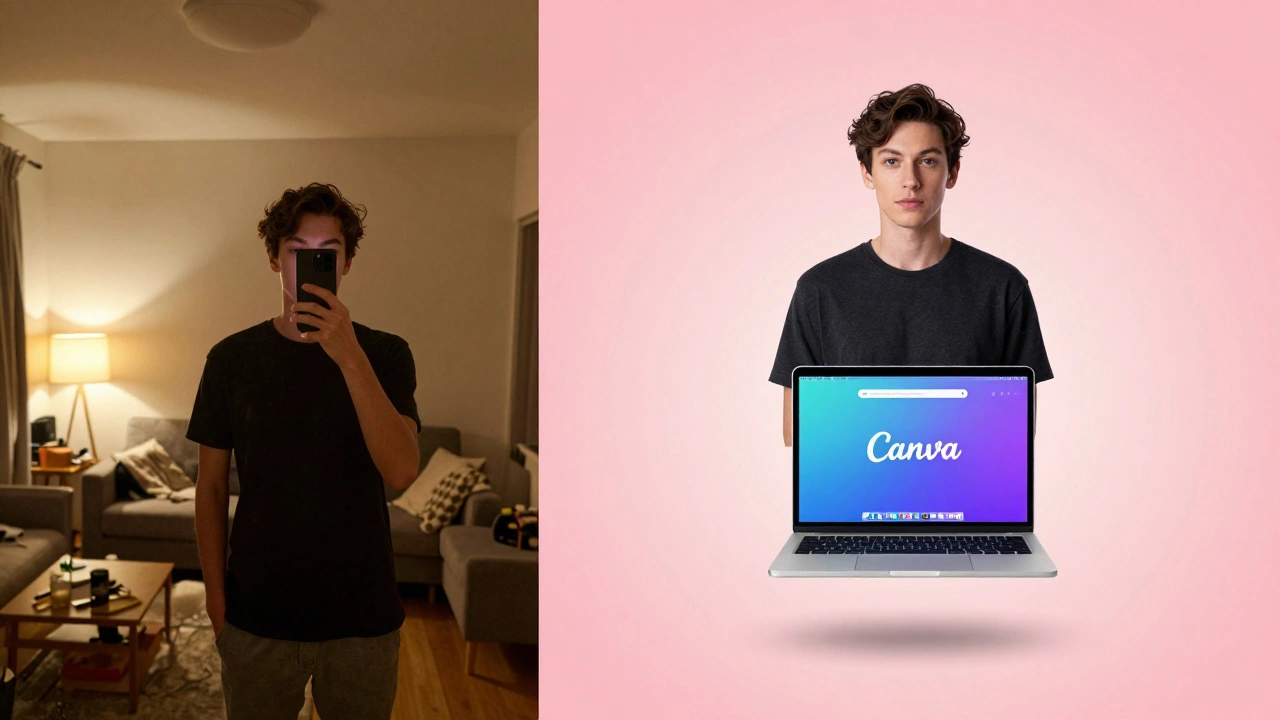
- Canva - Type “remove background” in the search bar. Upload your photo, click once, and it’s gone. Great if you’re already designing something in Canva.
- Photoscape X - Free desktop app for Windows and Mac. Has a “Cut Out” tool that handles hair and fine edges better than most online tools.
- Background Eraser (Android/iOS) - A mobile-only app with one job: erase backgrounds. It’s simple, fast, and works offline. No ads.
Most of these use AI trained on millions of photos. They learn how to tell the difference between a person and a wall, a dog and a carpet, a leaf and a shadow. They’re not perfect-but they’re close enough for 90% of everyday uses.
Step-by-step: How to remove a background using Remove.bg
Let’s walk through the easiest method. This works whether you’re on a laptop, tablet, or phone.
- Open your browser and go to remove.bg.
- Click “Upload Image” and pick the photo from your device. It supports JPG, PNG, and even HEIC (iPhone format).
- Wait 2-4 seconds. The background disappears automatically. You’ll see a transparent grid behind your subject.
- Check the edges. If your hair or fur looks jagged, click “Edit” and use the brush tool to fix any missed spots.
- Click “Download.” Choose PNG format. That keeps the background transparent.
That’s it. No sliders. No layers. No guessing. You now have a clean image ready to drop into any design, document, or social post.
What if the tool gets it wrong?
AI tools struggle with three things: fine hair, transparent objects (like glass or plastic), and low-light photos. If your image has messy edges, here’s what to do:
- Blurry hair? Use the brush tool in Remove.bg or Canva to paint over the missed strands. Go slow. Zoom in.
- Transparent items? Try Photoscape X. It has a manual selection tool that lets you trace edges with your mouse.
- Dark background? If your subject is dark and the background is also dark, the AI might think they’re one thing. Try increasing brightness slightly before uploading.
- Multiple people? Most tools handle two or three people fine. More than that? Use Photoshop’s “Select Subject” tool or ask someone to take a better photo with a plain wall behind them.
Pro tip: Always shoot with a plain background if you know you’ll remove it later. A white wall, a solid-colored curtain, or even a bedsheet works better than a busy living room.
What format should you download?
Always choose PNG when downloading a background-removed image. Why?
- PNG supports transparency. The background is gone, not just white.
- JPG doesn’t allow transparency. If you save as JPG, the background becomes white-locking you into one color.
- PNG keeps quality high, even after editing.
- You can later place your image on any background-black, gradient, pattern, or another photo.
Never save as JPG unless you’re 100% sure you’ll only ever use it on a white background. And even then, PNG is still safer.
Can you remove backgrounds on your phone?
Yes. And it’s easier than ever. The Background Eraser app (Android and iOS) lets you do it in under 30 seconds. Just open the app, pick your photo, tap “Erase,” and it’s done. No account. No login. No ads.
Canva’s mobile app also has a background remover. Open Canva, create a blank design, upload your photo, tap the image, then tap “Remove Background.” It works on the go-perfect for editing a photo before posting to Instagram.
Even WhatsApp now lets you remove backgrounds from photos you send. In the latest update, when you send a photo with a person in it, WhatsApp offers a “Remove Background” option right in the edit menu. It’s not perfect, but it’s enough for casual use.
What can you do with a background-free image?
Once you’ve removed the background, your options open up:
- Product photos - Put your item on a white background for Etsy, Amazon, or Shopify.
- LinkedIn profile - Replace your messy office with a solid color or gradient.
- Design projects - Layer your cut-out person onto a beach, city skyline, or abstract art.
- Printables - Create custom T-shirts, mugs, or posters with your own image.
- Presentations - Make slides look professional by removing distracting backgrounds from screenshots or photos.
One user in Mumbai used this trick to sell handmade jewelry. She took photos in her kitchen, removed the background, and put each piece on a soft pink gradient. Her sales jumped 40% in two weeks.

What to avoid
Some tools promise “free” background removal but hide traps:
- Watermarks - Some sites give you a low-res image with a logo on it unless you pay. Stick to Remove.bg, Canva, or Background Eraser.
- File limits - Free versions often cap file size (e.g., 5MB). If your photo is too big, resize it first using a tool like TinyPNG.
- Privacy risks - Never upload sensitive photos (like ID cards or passport photos) to random websites. Use offline apps like Photoscape X or Background Eraser for private images.
If you’re removing a photo of someone else, always ask for permission. Even if it’s just a casual selfie, respect their privacy.
Next steps: What to try after you master background removal
Once you’re comfortable removing backgrounds, try these next-level tricks:
- Replace the background with a new image-like a sunset or city view.
- Use shadows to make your cut-out look like it’s really sitting on the new surface.
- Blur the edges slightly to blend your subject into the new background.
- Try color correction to match the lighting of your new background.
Canva and Adobe Express let you do all this in one place. No need to jump between apps.
Can I remove background from a photo for free?
Yes. Tools like Remove.bg, Canva, and Background Eraser let you remove backgrounds for free without signing up. You can download the result as a PNG file with a transparent background. Some tools limit file size or resolution on free plans, but they’re enough for social media, profiles, and small prints.
Why is my image blurry after removing the background?
Blurry results usually happen when you upload a low-resolution photo. Always use the highest quality version of your image. If the original photo was taken on a phone in low light, the AI might struggle to define edges. Try retaking the photo with good lighting and a plain background.
Can I remove background from a group photo?
Most AI tools handle two or three people fine. For four or more, results get messy. The AI might merge people together or remove parts of clothing. For group photos, it’s better to take the shot against a plain wall, or use Photoshop’s “Select Subject” tool for more control.
Do I need to install software to remove a background?
No. Most people use browser-based tools like Remove.bg or Canva-they work right in Chrome or Safari. But if you prefer offline tools or need more control, you can download free apps like Photoscape X (Windows/Mac) or Background Eraser (Android/iOS).
Is removing background from a photo legal?
Yes, as long as you own the photo or have permission from the person in it. Removing a background from your own selfie or product is fine. Don’t use someone else’s photo without permission, especially if you’re selling it or posting it publicly. Always respect privacy and copyright.
Final tip: Practice on old photos first
Don’t delete your original. Always keep a copy of the photo before you edit it. Try out background removal on photos you don’t care about-like vacation shots from three years ago. Once you get the hang of it, you’ll be able to fix any photo in under a minute. It’s one of the most useful skills in digital photo editing today.