Free Photoshop Alternative Finder
Answer 4 quick questions to discover which free photo editor is perfect for you.
What's your primary goal?
Where do you prefer to work?
What's your experience level?
Which feature matters most?
You spend hours perfecting an image, only to hit the paywall. Adobe’s subscription model is expensive, and if you’re just starting out or working on a tight budget, that monthly fee adds up fast. The good news? You don’t need to pay for Photoshop to get professional results. In 2026, the landscape of free photo editing software has evolved dramatically. Whether you need precise pixel-level manipulation, AI-powered background removal, or robust layer management, there are powerful tools available at zero cost.
This guide cuts through the noise to show you exactly which free alternatives match your specific needs. We’ll look at desktop powerhouses, browser-based quick fixes, and mobile options, helping you decide where to invest your time without spending a dime.
The Browser-Based Champion: Photopea
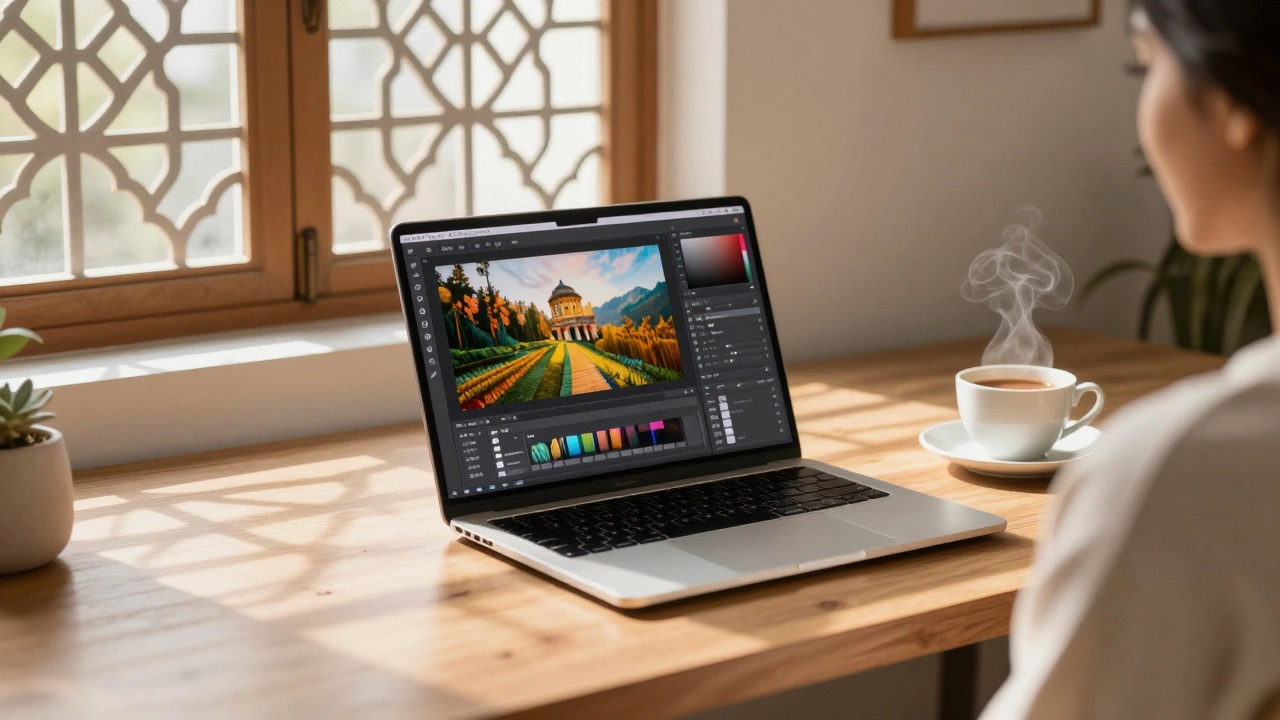
If you want something that feels like Photoshop but runs in your web browser, Photopea is a free, online advanced image editor that supports PSD, XCF, Sketch, XD, and CDR files. It launched in 2014 and has since become the go-to solution for users who need Photoshop compatibility without the installation hassle.
Why does Photopea stand out? It mimics the Photoshop interface almost perfectly. If you know how to use layers, masks, and adjustment layers in Photoshop, you can use them here immediately. It opens .PSD files directly, preserving all your layer structures, smart objects, and text edits. This makes it incredibly useful for freelancers who receive design files from clients using Adobe Creative Cloud.
- Pros: No installation required, works on any OS (Windows, Mac, Linux, ChromeOS), excellent PSD support, familiar UI.
- Cons: Slower performance on large files compared to native apps, relies on internet connection (though it caches locally), ads on the free version.
Use Photopea when you need a quick fix on a borrowed computer or when you’re collaborating with someone who uses Photoshop. It’s not a full replacement for heavy-duty compositing due to memory limitations in browsers, but for 90% of standard editing tasks, it’s shockingly capable.
The Open-Source Powerhouse: GIMP
For those willing to learn a new workflow, GIMP is the GNU Image Manipulation Program, a free and open-source raster graphics editor. It has been around since 1995 and is often cited as the primary free alternative to Photoshop for serious desktop users.
GIMP is not just a "lite" version of Photoshop; it is a fully featured image editor with its own philosophy. It supports complex workflows including batch processing, plugin architectures, and extensive scripting via Python. While the default interface can feel cluttered to newcomers, recent updates have improved usability significantly. You can dockable dialogs and customizable toolbars to create a workspace that suits you.
| Feature | Photopea | GIMP | Krita |
|---|---|---|---|
| Platform | Web Browser | Windows, Mac, Linux | Windows, Mac, Linux |
| PSD Support | Excellent | Good (with plugins) | Moderate |
| Learning Curve | Low (if you know Photoshop) | High | Medium |
| Best For | Quick edits, compatibility | Advanced manipulation, retouching | Digital painting, illustration |
The key advantage of GIMP is its extensibility. Thousands of community-created plugins exist to add features like AI denoising, advanced color grading, and automated batch renaming. If you are comfortable tinkering, GIMP can be more powerful than Photoshop in niche areas. However, expect a steep learning curve. The terminology differs (e.g., "Layers" vs "Channels" behavior), so patience is required.
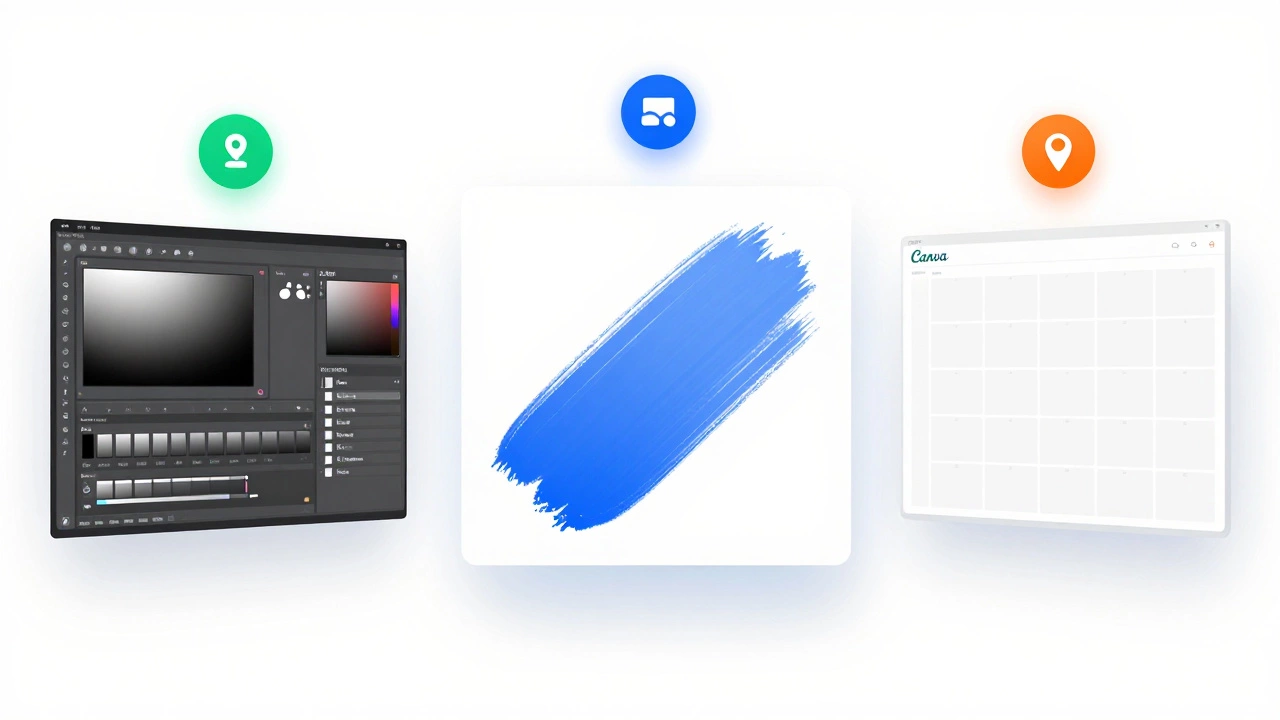
For Digital Artists: Krita
If your goal isn’t photo retouching but rather creating art from scratch, Krita is a free, open-source painting program designed by artists for artists. Originally developed in 2005, it focuses heavily on brush engines, animation, and vector shapes rather than traditional photo manipulation.
Krita excels in areas where Photoshop falls short without additional tablets or extensions. Its brush stabilizer is industry-leading, allowing for smooth strokes even on low-end hardware. It also includes a built-in animation timeline, making it a viable option for simple 2D animations. While it can handle photo adjustments like curves and levels, its strength lies in creation, not correction.
Choose Krita if you are an illustrator, concept artist, or comic creator. It integrates well with graphic tablets from Wacom, Huion, and XP-Pen. Unlike GIMP, which can feel clunky for drawing, Krita’s interface is streamlined for creative flow.
AI-Powered Simplicity: Canva and Pixlr
Sometimes you don’t need layers and masks. You just need to remove a background, add text, or adjust lighting quickly. This is where Canva is a cloud-based graphic design platform offering drag-and-drop templates and AI tools, and Pixlr is a browser-based photo editor with AI-enhanced features.
Canva’s free tier is surprisingly robust for social media graphics, presentations, and basic photo edits. Its AI background remover (often limited in free tiers) and template library save hours of design work. Pixlr, on the other hand, offers a middle ground between Photopea’s complexity and Canva’s simplicity. It provides AI-powered tools like "Genfill" for generative fill, similar to Photoshop’s Generative Fill, though with fewer iterations in the free plan.
These tools are ideal for marketers, students, and casual users who prioritize speed over precision. They abstract away the technical details, letting you focus on the visual outcome.
Mobile Editing: Snapseed and Lightroom Mobile
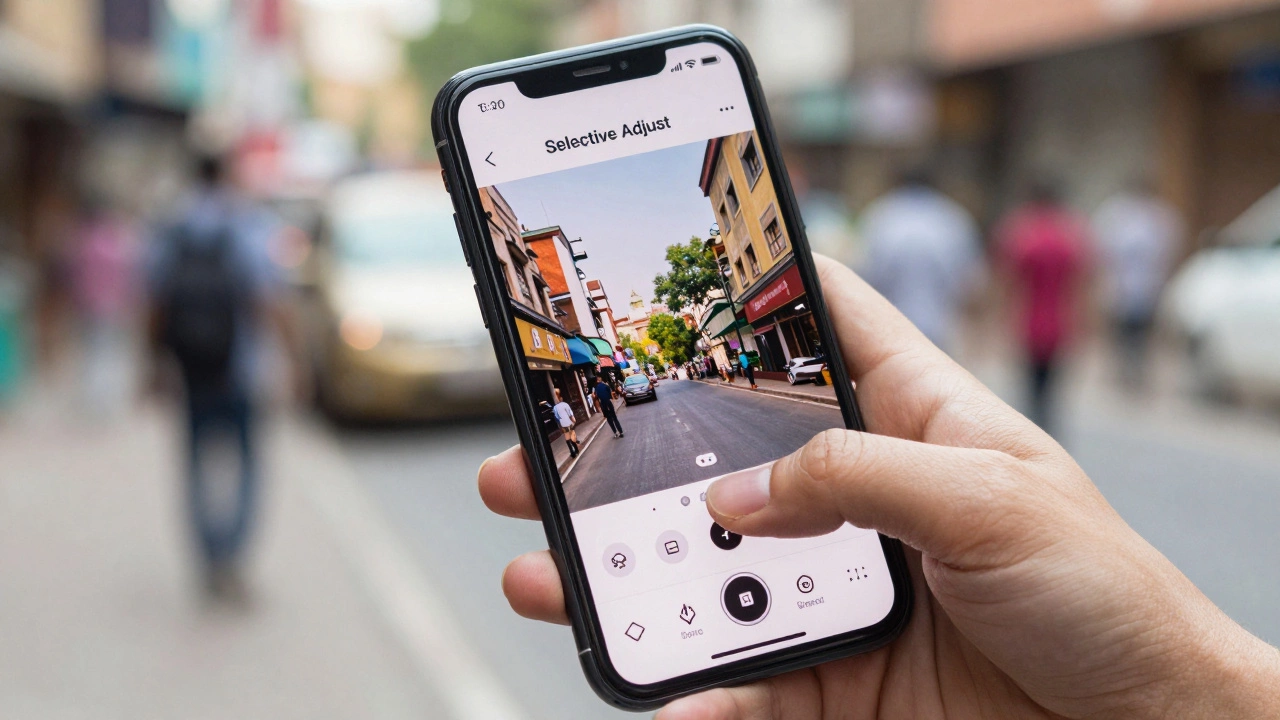
Don’t overlook your phone. Snapseed is a free mobile photo editing app by Google with professional-grade tools, while Adobe Lightroom Mobile offers advanced color grading and RAW processing capabilities on mobile devices.
Snapseed is completely free with no ads or subscriptions. It includes powerful tools like selective adjustments, healing brushes, and perspective corrections. It’s perfect for on-the-go editing. Lightroom Mobile, while freemium, allows you to edit RAW files and apply sophisticated color grades without paying, provided you don’t need cloud sync or AI masking features.
How to Choose the Right Tool
Selecting the right free alternative depends on your specific job-to-be-done. Here’s a quick decision tree:
- Do you need to open/edit existing Photoshop (.PSD) files? Use Photopea.
- Are you doing heavy retouching, compositing, or batch processing? Install GIMP.
- Are you painting, illustrating, or animating? Download Krita.
- Do you need quick social media graphics or simple edits? Use Canva or Pixlr.
- Are you editing photos on your phone? Start with Snapseed.
Remember, "free" often means a trade-off in convenience or support. You may need to watch tutorials to master GIMP’s interface or deal with ads in Photopea. But the cost savings are significant, and the quality gap has narrowed considerably.
Is Photopea really free forever?
Yes, Photopea is free to use with no time limits. It is supported by advertisements displayed on the side of the interface. There is no premium subscription required for core features, though removing ads requires a one-time purchase or donation.
Can GIMP replace Photoshop for professional work?
For many professionals, yes. GIMP can handle complex compositing, color correction, and retouching. However, it lacks some AI-driven features found in Photoshop (like Neural Filters) and has less seamless integration with other Adobe products. Many agencies still require Photoshop for collaboration reasons.
Which free editor is best for beginners?
Photopea is the best starting point for beginners because its interface mirrors Photoshop. If you watch a Photoshop tutorial, you can likely follow along in Photopea. For absolute simplicity, Canva is easier but offers less control over individual pixels.
Does Krita support layers like Photoshop?
Yes, Krita supports layers, layer groups, masks, and blending modes. However, its layer system is optimized for painting workflows rather than photo manipulation. Features like non-destructive editing are present but implemented differently than in Photoshop.
Are there any hidden costs in these free alternatives?
GIMP and Krita are open-source and have no hidden costs. Photopea and Canva are freemium models; their core editing tools are free, but they may charge for advanced AI features, cloud storage, or ad-free experiences. Always check the current pricing page before relying on a feature for commercial work.