Ever taken a group photo, only to realize someone blinked, stood in the wrong spot, or just didn’t belong? You don’t need expensive software or a professional editor to fix it. With free tools available today, you can edit a person out of a picture-or move them, resize them, or even replace them-without spending a rupee. This isn’t science fiction. It’s real, and it works on your phone or laptop right now.
Why You Don’t Need Paid Software
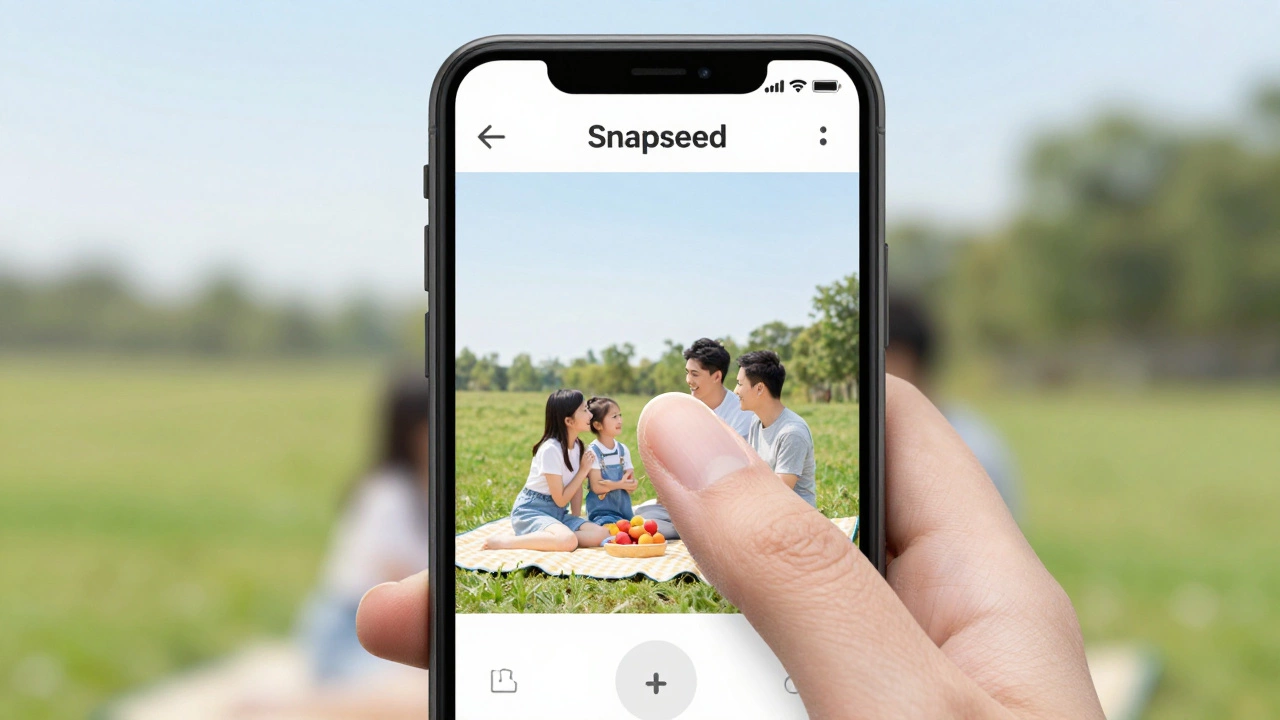
Many people think editing people out of photos requires Photoshop, which costs money and has a steep learning curve. But you don’t need it. Free apps like Photoscape X a free, easy-to-use photo editor with clone and erase tools, Remove.bg a web tool that removes backgrounds and can help isolate people, and Snapseed Google’s free mobile app with healing and clone tools do the job just as well for most users. These tools were built for everyday people-not graphic designers. They’re fast, intuitive, and don’t ask for credit cards.Take a real example: a family picnic photo from last summer. Your cousin accidentally walked into frame holding a beer can. You want to remove him without ruining the grass behind him. In Photoshop, that could take 20 minutes. In Snapseed, it takes under 3 minutes. And it’s free.
Step-by-Step: Removing a Person Using Snapseed (Mobile)
If you’re on Android or iPhone, Snapseed is your best starting point. Here’s how to do it:- Open the photo in Snapseed.
- Tap the Tools icon at the bottom.
- Select Healing from the list.
- Zoom in on the person you want to remove.
- Tap and drag over the person with your finger. The app will automatically replace that area with nearby textures-like sky, grass, or walls.
- If the result looks patchy, undo and try again with smaller strokes.
- When satisfied, tap the checkmark, then Export to save.
Pro tip: Work in high-resolution mode. The more detail the app has to work with, the smoother the result. Avoid editing tiny images-blurry photos make it harder to hide edits.
Using Photoscape X on Desktop (Windows or Mac)
If you’re on a computer and need more control, Photoscape X a free desktop photo editor with clone and eraser tools is a hidden gem. It’s not as flashy as Photoshop, but it’s built for exactly this kind of task.Here’s how:
- Download and install Photoscape X from photoscape.org (it’s free, no signup needed).
- Open your photo in the Editor tab.
- Go to the Clone tool on the left panel.
- Hold Alt (Option on Mac) and click on a clean area near the person you want to remove.
- Now click and drag over the person. The tool copies pixels from your source spot to cover them.
- Use a soft brush for smoother edges. Zoom in to check for unnatural repeats.
- When done, click Save as PNG or JPG.
This method works best when the person is standing against a simple background-like a wall, sky, or plain floor. If the background is busy (like a crowd or trees), you might need to use the Eraser tool first to clean up edges before cloning.
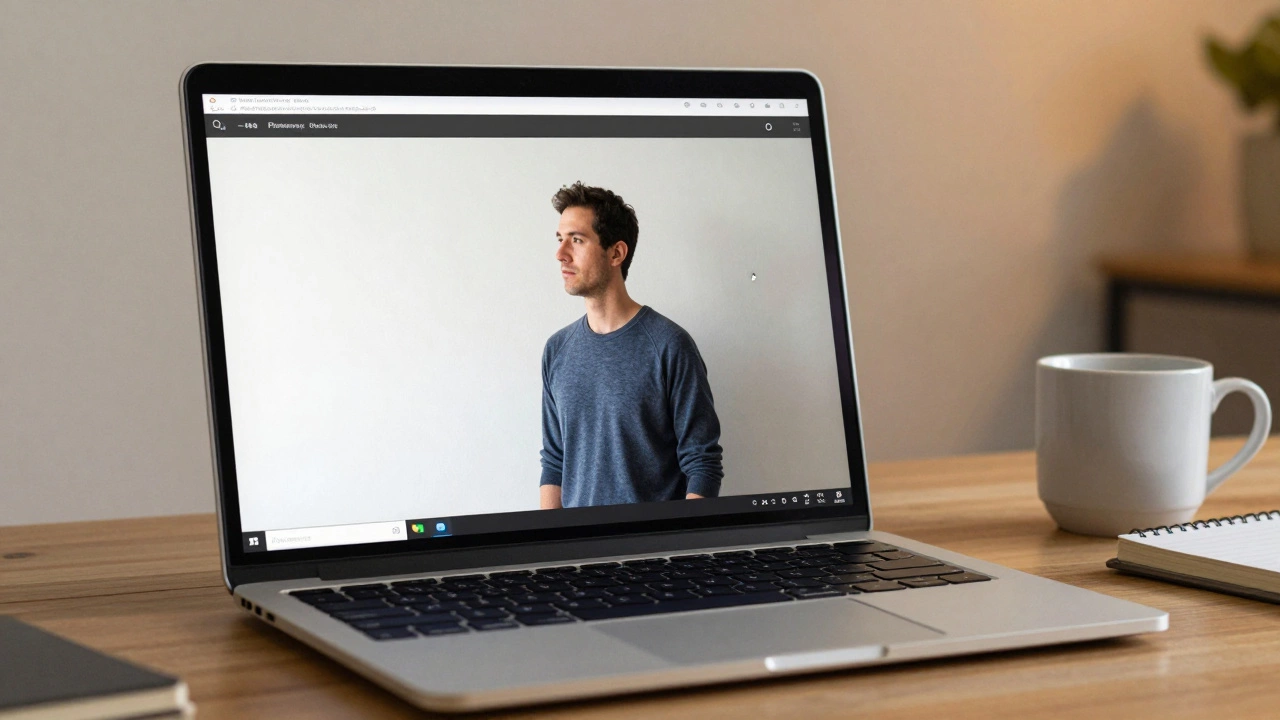
What About Removing People from Complex Backgrounds?
If the person is standing in front of a tree, a crowd, or a busy street, things get trickier. That’s where Remove.bg a free online tool that removes backgrounds and isolates subjects comes in. It doesn’t remove the person directly, but it can help you isolate them.Here’s the workaround:
- Go to remove.bg and upload your photo.
- It will automatically remove the background and leave the person on a transparent layer.
- Download the image as PNG.
- Open it in Photopea a free online Photoshop alternative.
- Use the Clone Stamp tool to paint over the empty space where the person was.
- Save and export.
This method gives you more control than auto-remove tools alone. It’s not perfect, but it’s free and works surprisingly well for casual use.
Common Mistakes to Avoid
Even with good tools, people mess up. Here are the top three mistakes-and how to avoid them:- Editing too fast: Rushing leads to obvious clones. Take your time. Zoom in. Check the edges.
- Using the same texture twice: If you clone from the same spot repeatedly, you’ll see repeating patterns. Always pick new source areas.
- Ignoring lighting: If the person was in shadow and you clone from a sunlit area, it’ll look fake. Match the tone. Use the Brightness or Levels tool to adjust cloned areas.
Also, don’t try to remove someone from a photo where they’re half-hidden behind another person. That’s not possible with free tools. You’ll need professional software or a human editor for that.
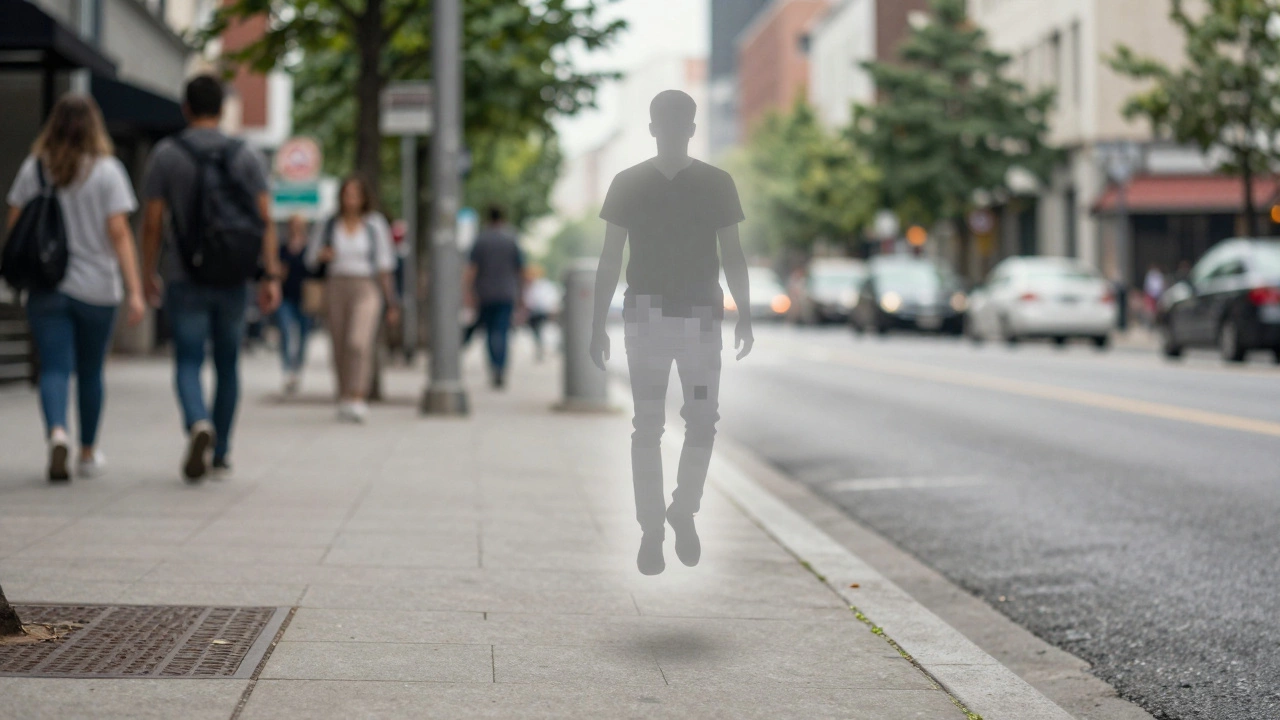
When Free Tools Just Won’t Cut It
Sometimes, you need more than what free apps can give. If the person is partially covered by another object, or if the background has complex movement (like water or leaves), even the best tools will leave artifacts. That’s when you might consider:- Using AI tools like Fotor a free AI photo editor with AI remove feature-they have an AI remove option that sometimes handles tricky edges better.
- Trying Pixlr a free browser-based editor with AI-powered tools for automatic background filling.
- Uploading to a freelance site like Fiverr and hiring someone for $5 to fix it manually.
Most of the time, though, free tools are enough. You’re not editing for a magazine cover-you’re fixing a family photo. That’s where these tools shine.
Final Tips for Better Results
- Always keep the original photo. Save your edited version as a new file.- Use PNG format if you need transparency (for layering later).
- If you’re editing on a phone, use a stylus for better precision.
- Practice on low-stakes photos first-like a group selfie with someone waving in the background.
- Don’t expect perfection. Free tools get you 90% there. The rest is patience.
People edit photos all the time. You see it in ads, social media, even news photos. But most of those edits were done with free tools. You don’t need to be a pro. You just need to know how to use what’s already free.
Can I remove a person from a photo for free on my phone?
Yes. Apps like Snapseed, Fotor, and Pixlr have free tools that let you remove people from photos on your phone. Snapseed’s Healing tool is the easiest for beginners. Just tap and drag over the person, and the app fills in the background automatically.
Is it legal to edit people out of photos?
It’s legal if you own the photo or have permission from everyone in it. Editing a photo of strangers in public (like a crowd) is fine. But if you edit someone out of a photo where they’re clearly identifiable-and they didn’t agree-you could run into privacy issues, especially if you share it publicly. Always ask before sharing edited group photos.
Why does my edited photo look blurry?
Blurry results usually happen when you edit a low-resolution image. Always start with the highest quality photo you have. Avoid zooming in too much on small images. If the original photo is pixelated, no tool can magically fix it.
Can I move a person to a different spot in the photo?
Yes, but it’s trickier. First, remove the person using the Healing or Clone tool. Then, use the Selection tool to copy the person from another photo or duplicate part of the image. Paste and resize them into the new spot. Match lighting and shadows for realism. This works best with simple backgrounds.
What’s the best free tool for beginners?
For beginners, start with Snapseed on mobile or Photoscape X on desktop. Both are free, don’t require sign-ups, and have simple tools designed for everyday edits. Remove.bg is great if you just need to cut out a person, not remove them from the scene.
Next Steps
Try editing one photo today. Pick a group shot where someone is awkwardly posed or standing out. Use Snapseed. Spend 5 minutes. You’ll be surprised how clean the result looks. Once you’ve done it once, you’ll never feel stuck again when someone ruins a perfect photo.And if you ever need to edit multiple photos? Batch editing tools like Photoscape X let you apply the same fix to 10 photos at once. Free, fast, and no subscription needed.