GIMP vs Photoshop: Which Photo Editing App Wins?
Compare GIMP and Photoshop in depth-price, features, performance, and best use cases-to decide which photo editing app fits your needs.
When evaluating GIMP vs Photoshop, a side‑by‑side look at two of the most popular image‑editing tools, also known as GIMP vs Adobe Photoshop, you’ll quickly see how each fits different needs. GIMP, a free, open‑source raster editor targets users who want powerful features without a subscription, while Photoshop, Adobe’s industry‑standard paid software offers a polished ecosystem, regular updates, and deep integration with other Creative Cloud apps. Understanding these core differences helps you decide which tool matches your workflow.
The comparison encompasses three main dimensions: feature set, cost structure, and learning curve. Feature wise, Photoshop brings advanced layer styles, content‑aware fills, and AI‑driven tools that speed up complex edits. GIMP, meanwhile, provides robust layer handling, customizable plugins, and full access to the source code for tweaks. Cost is a clear divider—Photoshop runs on a monthly or annual subscription, while GIMP is completely free, making it an attractive option for hobbyists or startups. Learning curve matters because Photoshop’s polished interface and extensive tutorials shorten onboarding, whereas GIMP’s UI can feel dated, requiring more self‑guided learning.
Choosing between GIMP and Photoshop requires looking at who will use the software. Professionals in advertising, film, or high‑end print often need Photoshop’s seamless integration with Lightroom, Illustrator, and other Adobe tools. Creators on a budget, students, or open‑source enthusiasts may gravitate toward GIMP, especially when paired with free Photoshop alternatives like Krita or Photopea, which can fill niche gaps. Additionally, the type of projects influences the decision: complex retouching or 3D integration leans toward Photoshop, while straightforward photo edits or quick graphic tweaks work well in GIMP.
Free Photoshop alternatives influence the decision to pick GIMP by offering cloud‑based editing without installation hassles. Tools such as Photopea mimic Photoshop’s interface in a browser, letting users test Photoshop‑like features without paying. Meanwhile, Krita excels in digital painting, making it a strong companion for artists who need brush‑heavy workflows. When you combine GIMP with these free peers, you get a versatile toolkit that rivals many paid suites.
Another important relationship is that the choice of photo editing app shapes the required hardware. Photoshop’s performance benefits from high‑end GPUs and ample RAM, especially when handling large RAW files. GIMP runs efficiently on modest machines, which can be a deciding factor for creators with older laptops or limited budgets. This hardware‑software link often guides small studios and freelancers toward the lighter, free options.
Pricing models also affect long‑term budgeting. Photoshop’s subscription ensures continuous updates and cloud storage, but the recurring cost adds up over years. GIMP’s zero‑cost model eliminates that expense, but you may need to invest time in community plugins or occasional paid add‑ons. If your business model includes recurring client work that demands the latest features, Photoshop’s subscription might be justified; otherwise, GIMP offers a sustainable, no‑cost path.Community support plays a subtle yet powerful role. Photoshop benefits from official Adobe forums, extensive training courses, and a massive user base. GIMP, though free, thrives on a passionate open‑source community that contributes tutorials, scripts, and bug fixes. When troubleshooting, the type of support you prefer—official documentation versus community‑driven solutions—can tip the scales.
Finally, licensing considerations matter for commercial use. Photoshop’s commercial license grants broad usage rights and includes indemnity protections, which large agencies often require. GIMP’s GPL license allows commercial use but mandates that any derivative work also be open source if you distribute the software itself, a nuance that may affect some business models.
Below you’ll find a curated set of articles that dive deeper into each of these areas. From a side‑by‑side feature breakdown to cost‑saving tips with free Photoshop alternatives, the collection gives you actionable insight to make a confident choice. Whether you’re a seasoned designer weighing upgrade options or a newcomer looking for a budget‑friendly start, the posts ahead cover the full spectrum of the GIMP vs Photoshop debate.
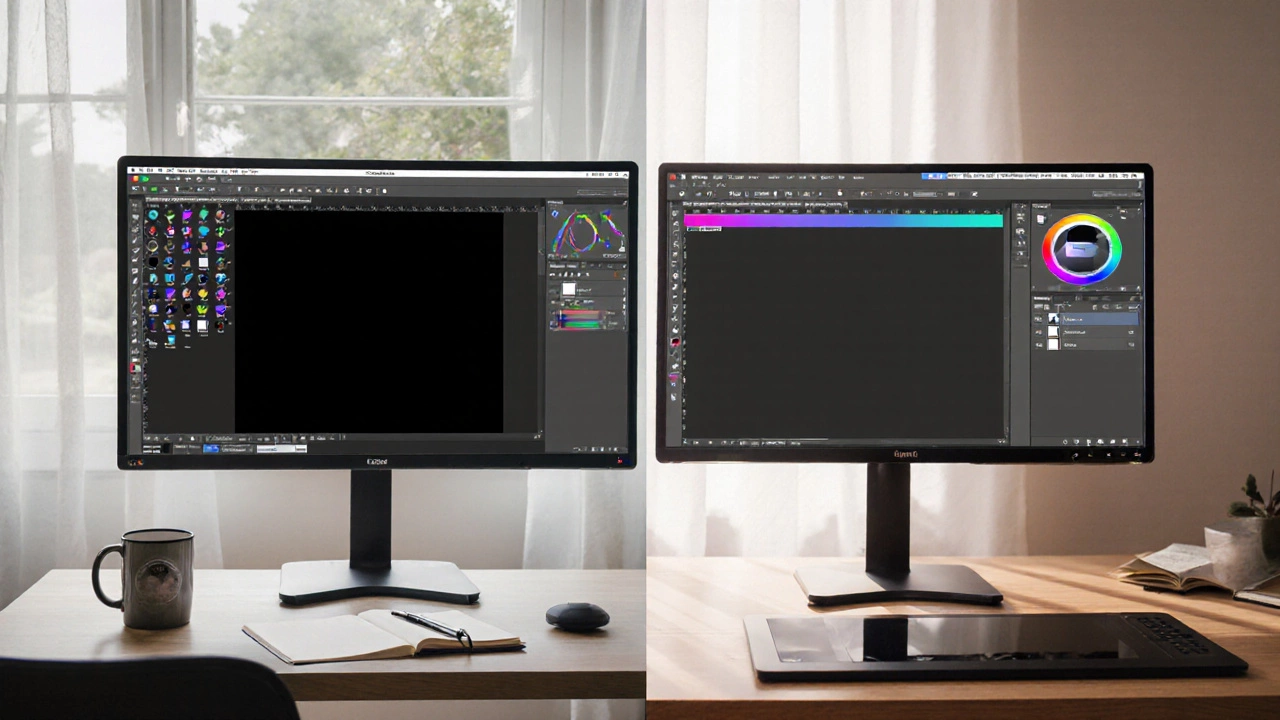
Compare GIMP and Photoshop in depth-price, features, performance, and best use cases-to decide which photo editing app fits your needs.