GIMP vs Photoshop: Which Photo Editing App Wins?
Compare GIMP and Photoshop in depth-price, features, performance, and best use cases-to decide which photo editing app fits your needs.
When working with free Photoshop alternatives, open‑source or budget‑friendly editors that let you edit images without paying Adobe’s subscription, you get a whole ecosystem of tools that cover everything from raw file handling to advanced compositing. Also known as free photo editing software, it includes both desktop programs and browser‑based apps. The ecosystem free Photoshop alternatives encompasses GIMP, a long‑standing open‑source suite with layer masks, paths and a customizable UI, and Photopea, a web‑based editor that mimics Photoshop’s interface and supports PSD files directly in your browser. Another notable player is Krita, which shines for digital painting and illustration while still offering solid photo‑editing tools. Together these programs form a versatile alternative landscape, letting you choose a tool that matches your workflow and hardware.
Choosing a free Photoshop alternative requires looking at three core attributes: feature set, platform compatibility, and learning curve. Feature set covers raw support, layer management, filters, and export options—GIMP offers a comprehensive plug‑in ecosystem, Photopea provides full PSD compatibility, and Krita excels with brush engines and animation frames. Platform compatibility matters because you might be on Windows, macOS, Linux, or even a Chromebook; GIMP and Krita run natively on all three major OSes, while Photopea works on any device with a modern browser, making it perfect for on‑the‑go edits. The learning curve varies: GIMP’s interface can feel dated but is well documented, Photopea feels familiar to Photoshop veterans, and Krita’s UI is designed for artists, so newcomers to photo work may find it intuitive. Understanding these attributes helps you match the tool to your project—whether you need quick social‑media tweaks, professional‑grade retouching, or creative illustration.
Once you know what each tool brings, the next step is testing them on real tasks. Try opening a multi‑layer PSD in Photopea to see if the layers preserve correctly, adjust color curves in GIMP to gauge its precision, or sketch a concept in Krita to feel its brush responsiveness. By comparing output quality, speed, and ease of use, you’ll quickly spot the editor that fits your style. The collection below dives deeper into each free Photoshop alternative, offering download guides, feature comparisons, and tips for getting the most out of your chosen software. Ready to find the perfect match for your editing workflow?
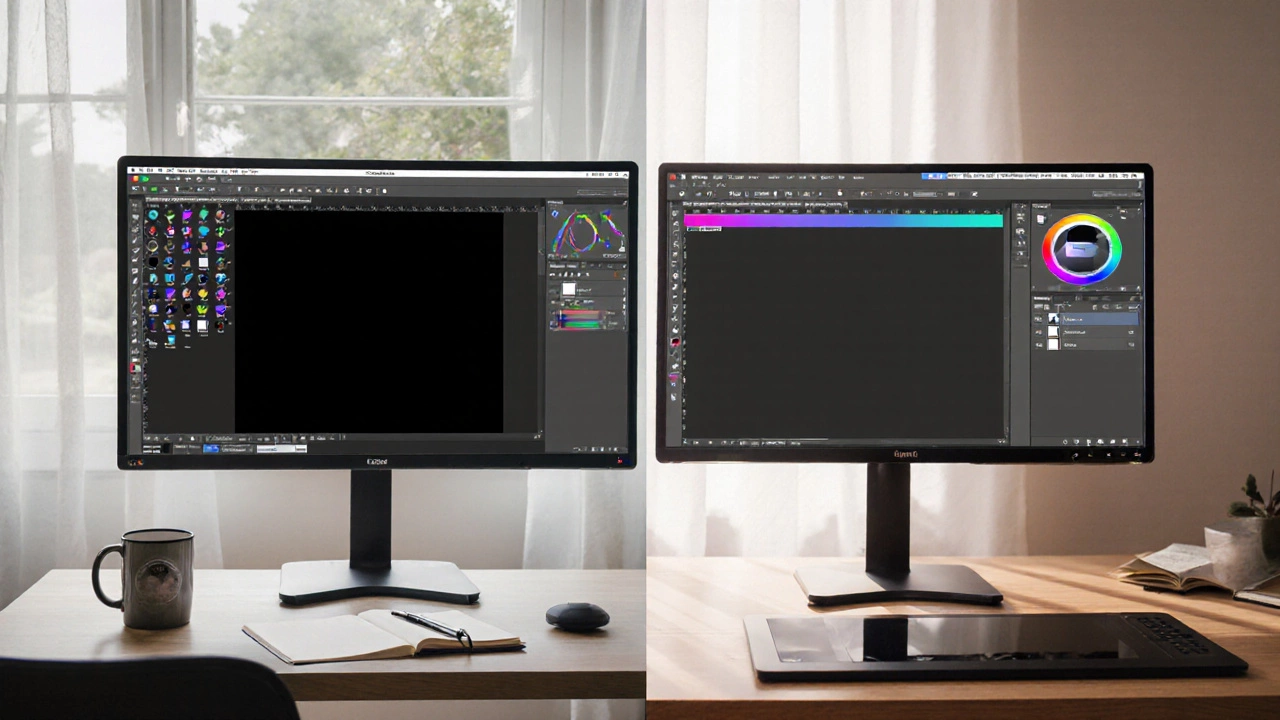
Compare GIMP and Photoshop in depth-price, features, performance, and best use cases-to decide which photo editing app fits your needs.