Passport Photo Compliance Checker
Photo Composition Simulator
Adjust the sliders below to simulate your photo's composition. The tool checks if it meets standard 2x2 inch requirements.
• Head Size: Within range
• Background: Acceptable
• Resolution: Simulated 600x600px
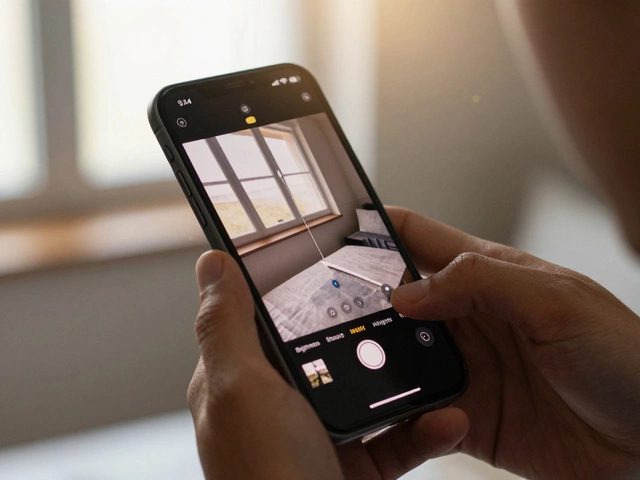
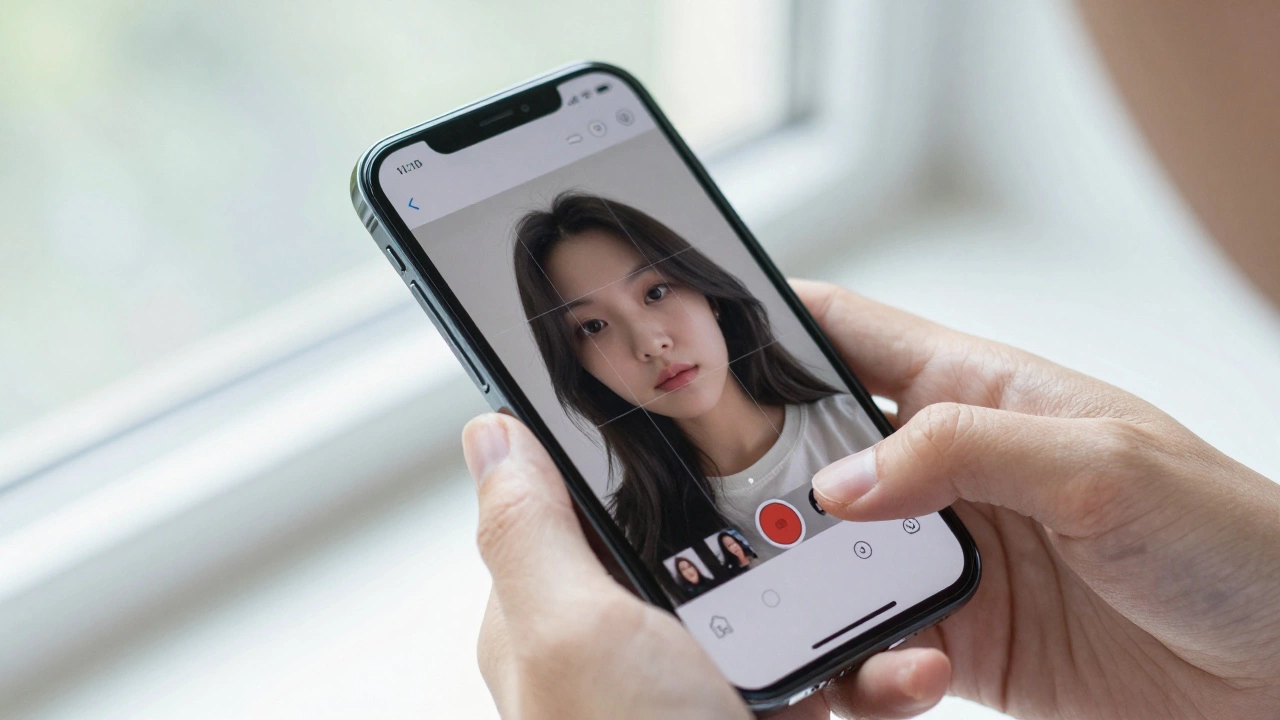
Staring at your iPhone screen, you realize the perfect headshot is just a few pixels off. You need that crisp 2x2 inch square for your visa application or ID renewal, but the Photos app doesn’t have a "Make Passport" button. It’s a frustratingly common problem. Most people try to guess the dimensions or use generic cropping tools that stretch their face awkwardly.
The good news? Your iPhone is actually a powerhouse for this task if you know the right sequence of taps. You don’t need a fancy DSLR or a trip to a pharmacy. With the built-in Photos app and a little understanding of pixel density, you can create a compliant 2x2 inch photo in under two minutes. Let’s walk through exactly how to do it, ensuring your submission isn’t rejected by automated systems.
Understanding the 2x2 Inch Requirement
Before we start tapping screens, let’s clear up what "2x2" actually means. In the digital world, inches are relative. A 2x2 inch photo printed on paper is different from one displayed on a screen. For most government agencies, like the U.S. Department of State, the requirement is specific:
- Physical Size: Exactly 2 inches by 2 inches (51 mm x 51 mm).
- Digital Resolution: At least 600 pixels by 600 pixels. This ensures high quality when printed.
- Head Height: The distance from the bottom of your chin to the top of your head should be between 1 inch and 1 3/8 inches (25 mm to 35 mm).
If your photo is too small, it will look blurry when printed. If it’s too large, some online portals might reject it automatically. The goal is to get your image into a square aspect ratio with enough detail to meet the 600-pixel minimum.
Method 1: Using the Built-in Photos App (Quickest Way)
This method works best if you already have a high-resolution photo taken with your iPhone’s rear camera. Here is the step-by-step process to crop and resize using only native iOS features.
- Open the Photo: Launch the Photos app and select your best headshot.
- Edit Mode: Tap the Edit button in the top-right corner.
- Select Crop Tool: Tap the crop icon (the overlapping squares) at the bottom of the screen.
- Set Aspect Ratio: Look for the circular arrow icon with a lock symbol. Tap it until you see the 1:1 option selected. This forces the frame into a perfect square.
- Position Your Face: Drag the corners of the square to zoom in. Ensure your eyes are level and there is even space around your head. Remember the rule: your head should take up about half the height of the frame.
- Save: Tap Done and choose Save as New Photo to keep the original intact.
This gives you a square image. However, the Photos app does not let you set exact pixel dimensions. If the resulting image is smaller than 600x600 pixels, you’ll need to upscale it (see Method 3). For most modern iPhones (iPhone 11 and newer), the front-facing camera captures images at 12 megapixels or higher, which is usually sufficient for a 600x600 crop.
Method 2: Using Third-Party Apps for Precision
If you need exact control over pixel dimensions or want to ensure the background is perfectly white, third-party apps are more reliable. These apps often include templates specifically designed for passport photos.
| App Name | Key Feature | Cost | Best For |
|---|---|---|---|
| Passport Photo Booth | Auto-crop to 2x2 | Free (with ads) | Quick compliance checks |
| Canva | Custom dimensions | Freemium | Design flexibility |
| Photo Editor | Advanced resizing | Free | Manual pixel control |
Using an app like Passport Photo Booth simplifies the process. You upload your photo, and the app automatically detects your face, crops it to the correct 2x2 ratio, and adjusts the lighting. Many of these apps also provide a printable sheet with multiple copies of your photo, saving you time if you need physical submissions.
Method 3: Upscaling Small Images
Did you crop your photo and find it’s only 400x400 pixels? Don’t panic. You can upscale it without losing too much quality. Modern AI-based upscalers are surprisingly effective.
Here’s how to do it manually if you don’t want to download another app:
- Go to Online Image Resizer tools via Safari (search for "free image resizer").
- Upload your cropped square photo.
- Set the width and height to 600 pixels each.
- Choose "Lanczos" or "Bicubic" interpolation for smoother edges.
- Download the resized image.
Alternatively, apps like Remini use AI to enhance resolution and clarity simultaneously. This is particularly useful if your original photo was slightly blurry or taken in low light.
Taking the Perfect 2x2 Photo on iPhone
Resizing is only half the battle. If the source photo is bad, no amount of cropping will save it. Here’s how to shoot a compliant photo directly on your iPhone:
- Lighting is Key: Stand facing a window with natural daylight. Avoid harsh shadows on your face. Do not use flash; it creates red-eye and uneven skin tones.
- Background: Use a plain white wall. Hang a white sheet if necessary. Ensure there are no patterns, logos, or other people in the background.
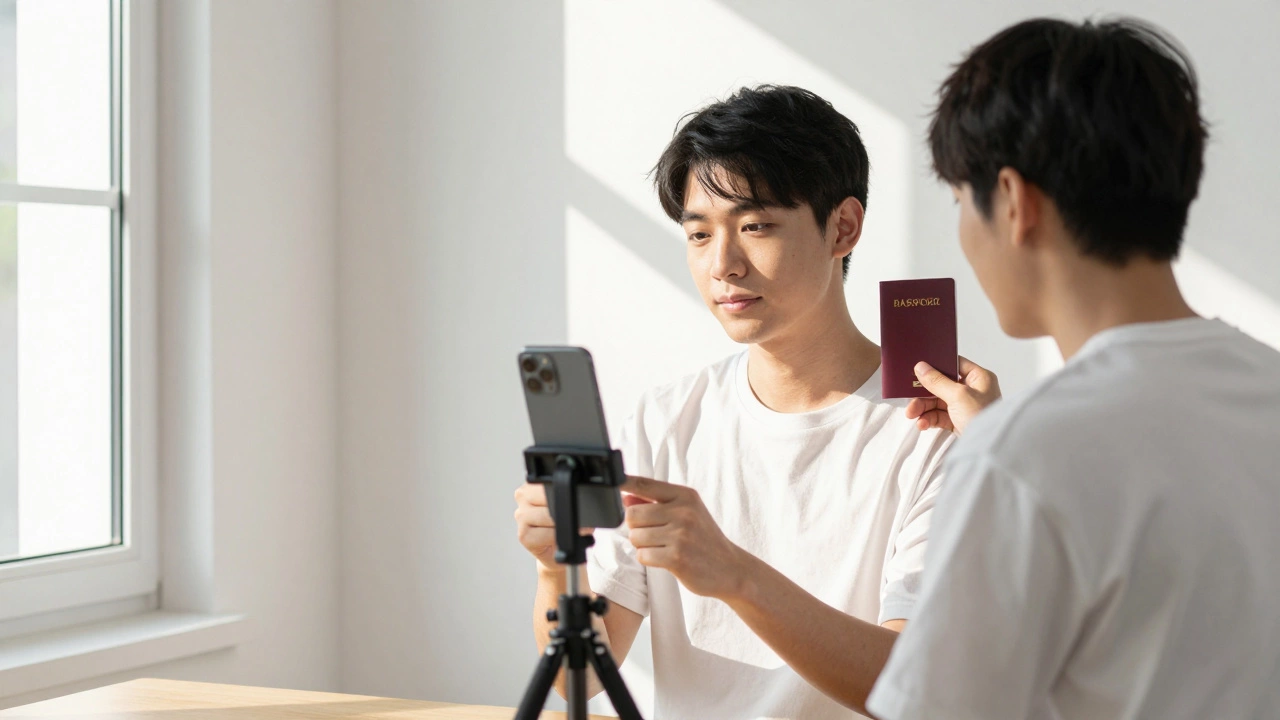
- Camera Angle: Hold the phone at eye level. Ask a friend to take the photo, or use a tripod/timer. Selfies often distort facial features because the camera is too close.
- Expression: Keep a neutral expression. Mouth closed, eyes open. No sunglasses, hats, or headscarves unless required for religious reasons.
- Resolution: Go to Settings > Camera > Formats and ensure "High Efficiency" is selected. This saves storage while maintaining quality.
Common Mistakes to Avoid
I’ve seen countless applications rejected due to simple errors. Here’s what to watch out for:
- Incorrect Aspect Ratio: A 2x2 inch photo must be a perfect square. If your image is rectangular (e.g., 2x3), it will be rejected.
- Too Much Headroom: Your head should not fill the entire frame. Leave some space above your hairline.
- Low Resolution: If the image looks pixelated when enlarged, it’s too small. Always aim for 600x600 pixels minimum.
- Edited Faces: Do not use filters or beauty modes that alter your natural appearance. Government officials need to recognize you.
- Glasses: Even if you wear glasses daily, remove them for the photo. Reflections can obscure your eyes.
Printing Your Digital Photo
If you need physical copies, you have two options:
- Home Printing: Use high-quality photo paper. Set your printer settings to "Actual Size" or "2x2 inches" to prevent scaling. Cut carefully along the lines.
- Professional Services: Upload your digital file to services like CVS Photo Services or local print shops. They guarantee the correct size and finish.
For online submissions, simply save the final 600x600 pixel image as a JPEG file. Most portals accept files under 240 KB. If your file is larger, compress it using a free online tool before uploading.
Can I use a selfie for a 2x2 passport photo?
Technically, yes, but it’s risky. Selfies often cause distortion because the camera is too close to your face. Your nose may appear larger, and your ears might be cut off. It’s better to have someone else take the photo from arm’s length away, or use a tripod with a timer.
What is the exact pixel size for a 2x2 inch photo?
The standard recommendation is 600 pixels by 600 pixels. This corresponds to 300 DPI (dots per inch) at 2x2 inches. Some agencies accept lower resolutions like 400x400, but 600x600 is the safest bet for both digital and print submissions.
Does the iPhone Photos app allow me to set specific dimensions?
No, the native Photos app only allows you to crop to aspect ratios (like 1:1, 4:3, etc.). It does not let you define exact pixel dimensions. For precise sizing, you’ll need a third-party app or an online resizer.
Can I edit my passport photo after taking it?
You can make minor adjustments to brightness and contrast, but avoid altering your facial features. No airbrushing, no changing your hairstyle digitally, and no removing blemishes that are part of your natural appearance. The goal is accurate identification.
Is a white background mandatory for all 2x2 photos?
For U.S. passports and visas, yes, a plain white background is required. Other countries may accept off-white or light gray backgrounds. Always check the specific guidelines of the agency requesting the photo.