Find Your Perfect Free Photo Editor
Photo Editing
Retouching, removing backgrounds, fixing colors.
Graphic Design
Social media posts, flyers, layouts with text.
Digital Art
Drawing, painting, illustration, concept art.
Beginner
I want something easy to learn quickly.
Intermediate
I know basics but need more power.
Advanced
I want full control like Photoshop.
Browser Only
No installation, works anywhere.
Desktop App
Installed software, offline capable.
Recommended Tool:
Tool Name
TypeDescription goes here.
Why it fits you:
Key Features:
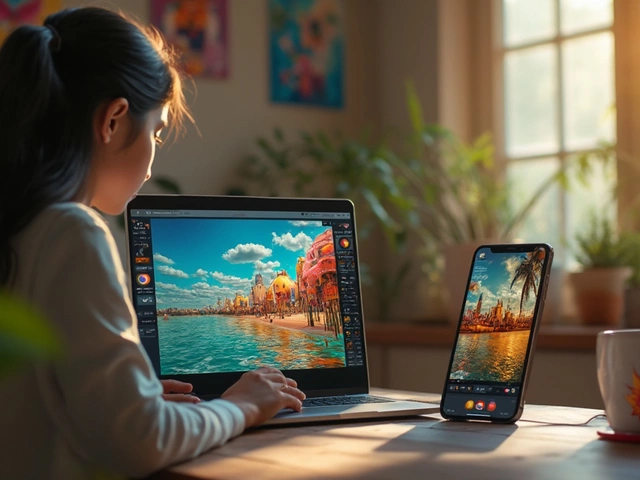
You want the power of professional photo editing without paying a monthly subscription. It’s a fair question. For years, Adobe Photoshop has been the industry standard, but its price tag keeps many creators out. The short answer is: there isn’t one single app that does everything Photoshop does for free. However, there are several powerful, totally free alternatives that cover most of what you need. Whether you are fixing a family portrait or designing a logo, you can get pro-level results without spending a rupee.
The landscape of photo editing has changed dramatically since I started tinkering with pixels in Mumbai. Back then, your options were limited to paid software or low-quality freeware. Today, open-source projects and browser-based tools have caught up. You don't need to be a coding expert to use them. In fact, some of these free tools are so intuitive that they might feel easier than the complex interface of Photoshop. If you are looking for a reliable way to manage your creative workflow, checking out resources like this directory can sometimes offer unexpected insights into how different digital platforms organize their services, though our focus here remains strictly on image manipulation.
Why Photoshop Is Hard to Replace (and What You Actually Need)
Before we jump into the free apps, let’s be clear about what makes Photoshop special. It’s not just about filters. It’s about layers, masks, non-destructive editing, and advanced color grading. When people ask for a "free Photoshop," they usually mean one of three things:
- Quick fixes: Cropping, brightening, removing backgrounds.
- Social media design: Adding text, creating posts, basic compositing.
- Professional retouching: Skin smoothing, object removal, detailed layer work.
Your choice of free app depends entirely on which bucket you fall into. A tool perfect for Instagram stories will fail you when trying to composite a fantasy landscape. Let’s break down the best options for each scenario.
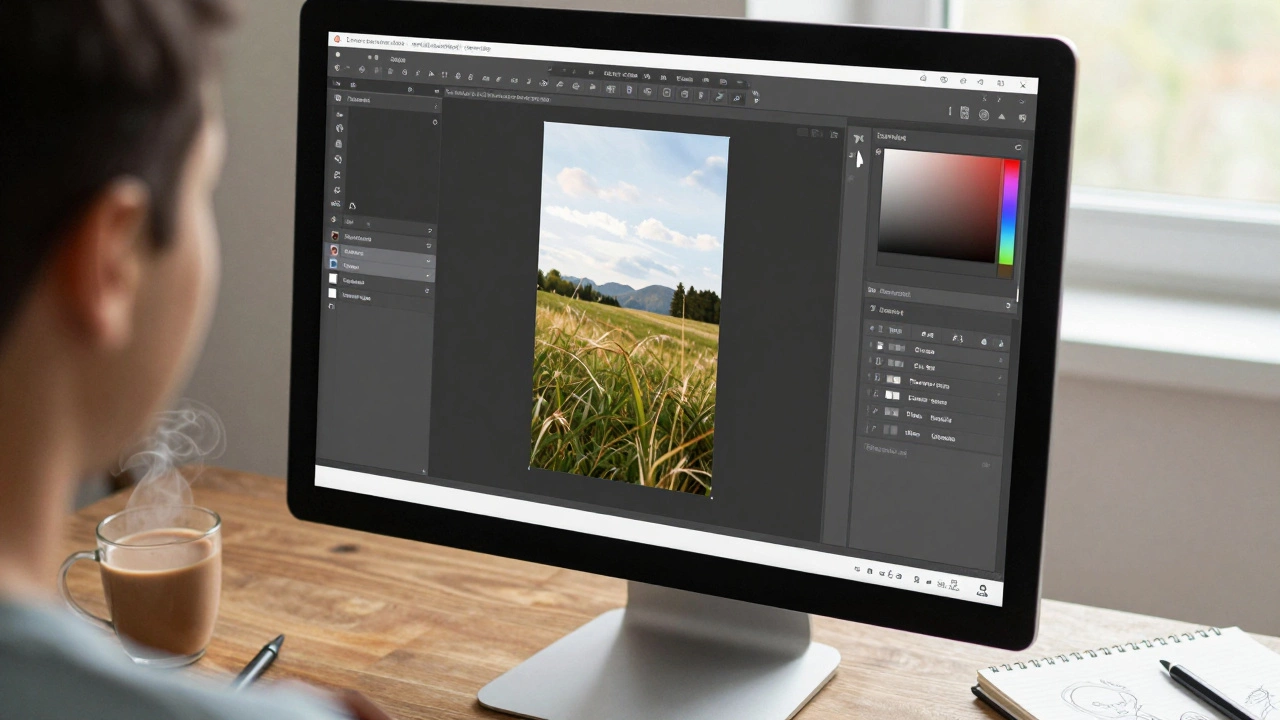
Photopea: The Browser-Based Clone
If you want something that looks and feels exactly like Photoshop, Photopea is a free, web-based photo editor that mimics the interface of Adobe Photoshop. You don’t even need to install anything. Just open your browser, go to the site, and start editing. It supports PSD files, meaning you can open projects created in Photoshop directly. This is huge for collaboration.
Photopea handles layers, masks, blend modes, and smart objects. It’s surprisingly fast, even on older laptops. The catch? It’s ad-supported. You’ll see banners around the workspace. They don’t interrupt your flow, but they are there. Also, because it runs in the browser, very large files (like high-resolution panoramas) might slow things down if you don’t have a strong internet connection or a lot of RAM.
Use Photopea if:
- You are used to the Photoshop layout and don’t want to relearn shortcuts.
- You need to edit PSD files on a computer that doesn’t have Photoshop installed.
- You want a quick, no-install solution for occasional edits.
GIMP: The Powerhouse for Desktop Users
For those who want full control and don’t mind a steeper learning curve, GIMP is GNU Image Manipulation Program, a free and open-source raster graphics editor. GIMP has been around for decades. It’s available for Windows, Mac, and Linux. Unlike Photopea, GIMP is installed on your machine, so it can handle massive files without worrying about browser limits.
GIMP offers advanced features like content-aware fill, batch processing, and extensive plugin support. You can customize every aspect of the interface. However, the default layout is different from Photoshop. Menus are organized differently, and some tools require a few extra clicks. If you’re willing to spend an afternoon watching tutorials, you can make GIMP feel like home. Many professional photographers use GIMP as their primary editor because it’s completely free and respects user privacy-no cloud tracking, no subscriptions.
Use GIMP if:
- You need heavy-duty editing capabilities comparable to Photoshop.
- You prefer offline software and value open-source principles.
- You are comfortable learning new keyboard shortcuts and workflows.
Canva: The Design-First Approach
Not everyone wants to manipulate pixels. Sometimes, you just want to create a beautiful poster, social media graphic, or presentation. That’s where Canva is an online design platform with drag-and-drop simplicity and thousands of templates. Canva’s free tier is incredibly generous. It includes access to millions of stock photos, icons, and fonts. You can resize designs for different platforms with one click.
Canva isn’t a replacement for Photoshop when it comes to deep photo retouching. It lacks advanced layer masking and precise color correction tools. But for layout, typography, and combining images with text, it’s unbeatable. The magic remove tool and background remover are available in the free version, albeit with some limitations compared to the Pro plan. If your goal is speed and aesthetics over technical precision, Canva is your friend.
Use Canva if:
- You create marketing materials, social posts, or presentations.
- You want pre-made templates to save time.
- You prioritize ease of use over granular control.
Adobe Express: The Official Free Option
Yes, Adobe offers a free alternative to Photoshop called Adobe Express is a simplified design tool by Adobe that focuses on quick creations and templates. It’s part of the Creative Cloud ecosystem but operates independently. You get access to some Adobe Fonts, stock assets, and basic editing tools like cropping, adjusting exposure, and applying filters. It also integrates with Adobe Stock, allowing you to preview premium images before buying.
Adobe Express is great for users already familiar with Adobe’s branding. It syncs across devices, so you can start a design on your phone and finish it on your laptop. However, the free version has watermarks on certain premium assets and limits the number of exports per month for some features. It’s more of a teaser for the full Creative Cloud suite than a complete Photoshop replacement.
Use Adobe Express if:
- You want a taste of Adobe’s ecosystem without committing.
- You need quick, branded social media graphics.
- You value cross-device synchronization.
Krita: Best for Digital Painting and Illustration
If your interest in Photoshop leans toward drawing, painting, or concept art rather than photo manipulation, Krita is a free, open-source painting program designed for illustrators, concept artists, and inkers. Krita excels in brush engines, stabilization, and animation frames. It has a canvas-focused interface that minimizes distractions. While it can do basic photo editing, its strength lies in creation, not correction.
Krita supports pressure sensitivity for tablets, making it ideal for artists using Wacom or iPad screens. It also includes a robust resource manager for organizing brushes, patterns, and gradients. If you’re an illustrator looking to escape the cost of Clip Studio Paint or Procreate, Krita is a worthy contender.
Use Krita if:
- You draw or paint digitally.
- You need a stable, feature-rich canvas for illustration.
- You want to experiment with frame-by-frame animation.
Comparison Table: Which Free Tool Fits You?
| Feature | Photopea | GIMP | Canva | Adobe Express | Krita |
|---|---|---|---|---|---|
| Platform | Web | Windows/Mac/Linux | Web/Mobile | Web/Mobile | Windows/Mac/Linux/iOS |
| Learning Curve | Medium (if you know Photoshop) | Steep | Low | Low | Medium |
| Best For | PSD Compatibility | Advanced Retouching | Social Media Design | Quick Templates | Digital Painting |
| Offline Use | No | Yes | Limited | Limited | Yes |
| Cost | Free (Ads) | Free (Open Source) | Freemium | Freemium | Free (Open Source) |
Pitfalls to Avoid with Free Editors
While these tools are impressive, they come with limitations. First, customer support is often community-driven. If GIMP crashes, you won’t call a help desk; you’ll search forums. Second, compatibility issues can arise. A complex PSD file might not render perfectly in Photopea due to proprietary Adobe plugins. Always keep backups of your original files.
Another common mistake is expecting mobile apps to match desktop power. Apps like Snapseed or Lightroom Mobile are excellent for quick tweaks, but they lack the depth of GIMP or Photoshop. If you’re serious about editing, invest in a decent computer and use desktop software. Your eyes-and your final image quality-will thank you.
Final Thoughts: Start Small, Scale Up
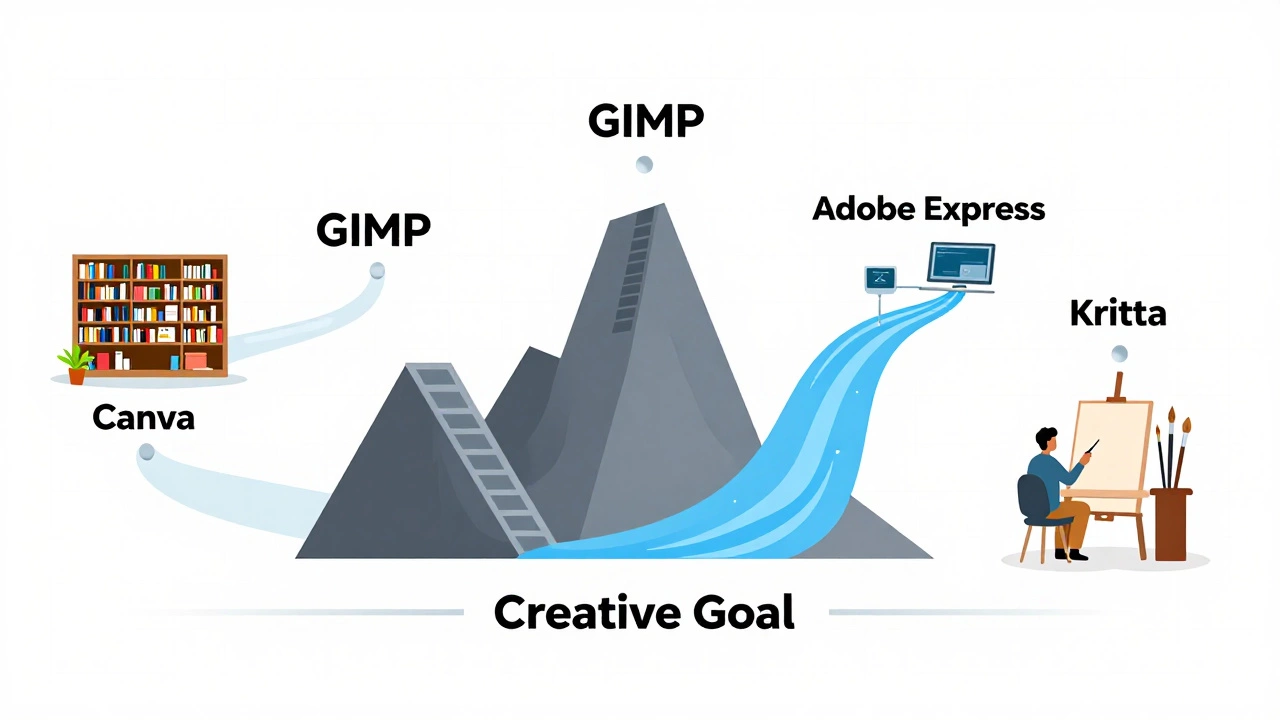
You don’t need Photoshop to be a great photographer or designer. Start with the tool that matches your current skill level. If you’re a beginner, try Canva or Adobe Express. If you’re transitioning from Photoshop, dive into Photopea. If you want mastery, commit to learning GIMP. The barrier to entry has never been lower. The only thing standing between you and professional-looking edits is practice.
Is there a completely free version of Adobe Photoshop?
No, Adobe does not offer a permanently free version of Photoshop. They provide a seven-day free trial, after which you must subscribe to Creative Cloud. Adobe Express is their free alternative, but it is much simpler and lacks advanced features.
Can I open Photoshop files (PSD) in free editors?
Yes, both Photopea and GIMP can open PSD files. Photopea is particularly good at preserving layer structures and effects. However, some advanced Photoshop-specific features may not translate perfectly.
Which free photo editor is best for beginners?
Canva is the easiest for beginners due to its drag-and-drop interface and templates. For more traditional photo editing, Photopea is a good starting point if you follow online tutorials, as it mimics the familiar Photoshop layout.
Is GIMP safe to download?
Yes, GIMP is open-source software maintained by a large community. Always download it from the official website (gimp.org) to avoid bundled malware from third-party sites.
Do free photo editors watermark my images?
Most truly free editors like GIMP and Photopea do not add watermarks. Freemium tools like Canva and Adobe Express may apply watermarks if you use premium assets without upgrading to a paid plan.