You don’t need to spend a single rupee to edit your photos like a pro. In 2026, there are plenty of powerful photo editing apps that work completely free-no watermarks, no hidden paywalls, no tricks. Whether you’re fixing a blurry selfie, adjusting colors for Instagram, or cropping a group photo for WhatsApp, you can do it all without opening your wallet.
Why Free Doesn’t Mean Bad
A lot of people think free apps are slow, clunky, or full of ads. That used to be true. But today’s best free photo editors are built by teams who know users want real tools, not gimmicks. Apps like Snapseed and Photopea don’t just give you filters-they give you layers, curves, healing brushes, and selective adjustments. These are the same tools professionals use. The only difference? You’re not paying for them.
Take Snapseed, for example. Developed by Google, it’s been downloaded over 100 million times. It’s not a toy. It has a healing tool that removes blemishes, a perspective tool that fixes tilted buildings, and a selective adjustment slider that lets you brighten just one part of the photo. All of it. Free.
Top 5 Free Photo Editing Apps You Can Use Right Now
Here are the five apps that actually deliver, no matter your skill level:
- Snapseed (iOS, Android) - Best for precision editing. It’s got over 20 tools, including a RAW editor, dual exposure, and a brush tool that lets you paint adjustments onto specific areas. No ads. No upsells. Just pure editing power.
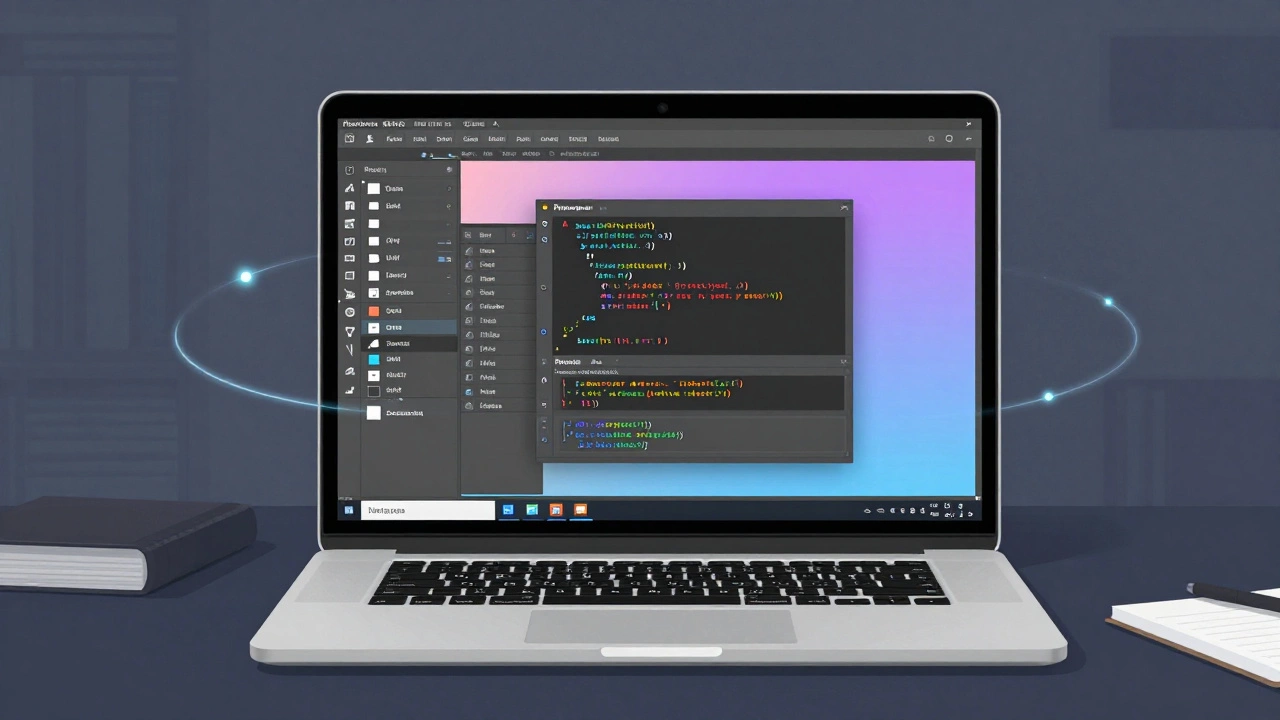
- Photopea (Web) - This is Photoshop, but free. It opens PSD, AI, and EPS files. You can use layers, masks, smart objects, and even plugins. If you’ve ever tried Photoshop and thought, “I can’t afford this,” try Photopea. It works in your browser. No download needed.
- Canva (iOS, Android, Web) - Great for quick social media edits. It’s not a pixel-perfect tool like Snapseed, but it’s perfect if you need text overlays, templates, or resizing for Instagram, Facebook, or YouTube thumbnails. The free version gives you 250,000+ templates and 100+ fonts.
- Darkroom (iOS) - Built for iPhone users who want professional controls. It has color grading curves, HSL sliders, and presets that mimic film stocks. The free version unlocks 90% of the features. The paid version is just for extra presets.
- Pixlr (iOS, Android, Web) - A solid middle ground between simplicity and power. It has a good selection of filters, overlays, and a clone tool. The web version is especially useful if you’re editing on a laptop or tablet.
What to Avoid in Free Apps
Not all free apps are created equal. Some are designed to trap you into paying. Watch out for these red flags:
- Apps that hide key tools behind a "Pro" button
- Watermarks on exported photos
- Forced sign-ups with email or social accounts
- Apps that only work for 7 days before locking features
Stick to the five apps listed above. They don’t play games. They don’t ask for your credit card. They just work.
Offline vs Online: Which One Should You Choose?
If you’re in a place with spotty internet-like a train ride from Mumbai to Pune-you’ll want an app that works offline. Snapseed and Darkroom both work without Wi-Fi. You can edit, save, and share photos even if you’re not connected.
On the other hand, if you’re editing on a laptop and have stable internet, Photopea is unbeatable. It’s the only free app that lets you open and edit Photoshop files exactly as they were made. No conversion. No loss of quality. Just open, edit, save.
Canva and Pixlr work best online. They’re cloud-based, so they’re great for collaboration. If you’re working with a friend on a shared album, you can both edit the same photo in real time.
Real-World Use Cases
Here’s how real people use these apps:
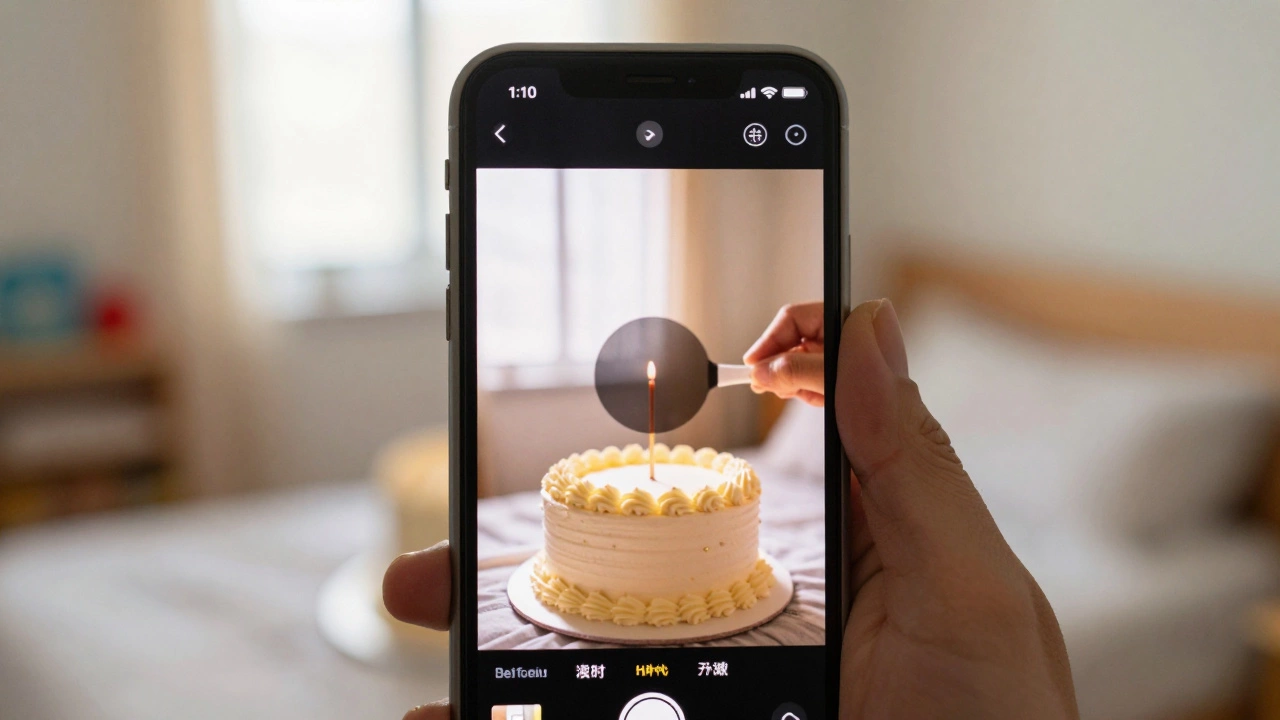
- A mother in Jaipur uses Snapseed to fix the shadows on her kid’s birthday photo so the cake looks bright and clear.
- A student in Kolkata uses Photopea to remove the background from a project image and replace it with a gradient for a presentation.
- A small business owner in Ahmedabad uses Canva to turn 10 product photos into Instagram carousels with text overlays-no designer needed.
- A travel blogger in Goa uses Darkroom to apply a warm filter that makes sunset shots look like film.
These aren’t hypothetical examples. These are common uses from real users on Reddit, YouTube, and Facebook groups. People are doing professional work with free tools every day.
Can You Edit RAW Photos for Free?
Yes. Snapseed handles DNG (Digital Negative) files. If you shoot in RAW with your phone or DSLR, you can import those files directly into Snapseed. You’ll get full control over exposure, highlights, shadows, and white balance. No need to buy Lightroom. No need to use a computer.
Photopea also opens RAW files from Canon, Nikon, Sony, and others-even if you don’t have Adobe software. Just drag and drop. It works.
How to Pick the Right One for You
Ask yourself three questions:
- Do I need advanced tools like layers and masks? → Go for Photopea or Snapseed.
- Am I editing for social media with text and templates? → Canva is your best friend.
- Do I want to edit on my iPhone without internet? → Darkroom wins.
If you’re just starting out, try Snapseed first. It’s the most balanced option. If you’re already using Photoshop on a computer, try Photopea. It’s the closest free replacement.
What About Android vs iPhone?
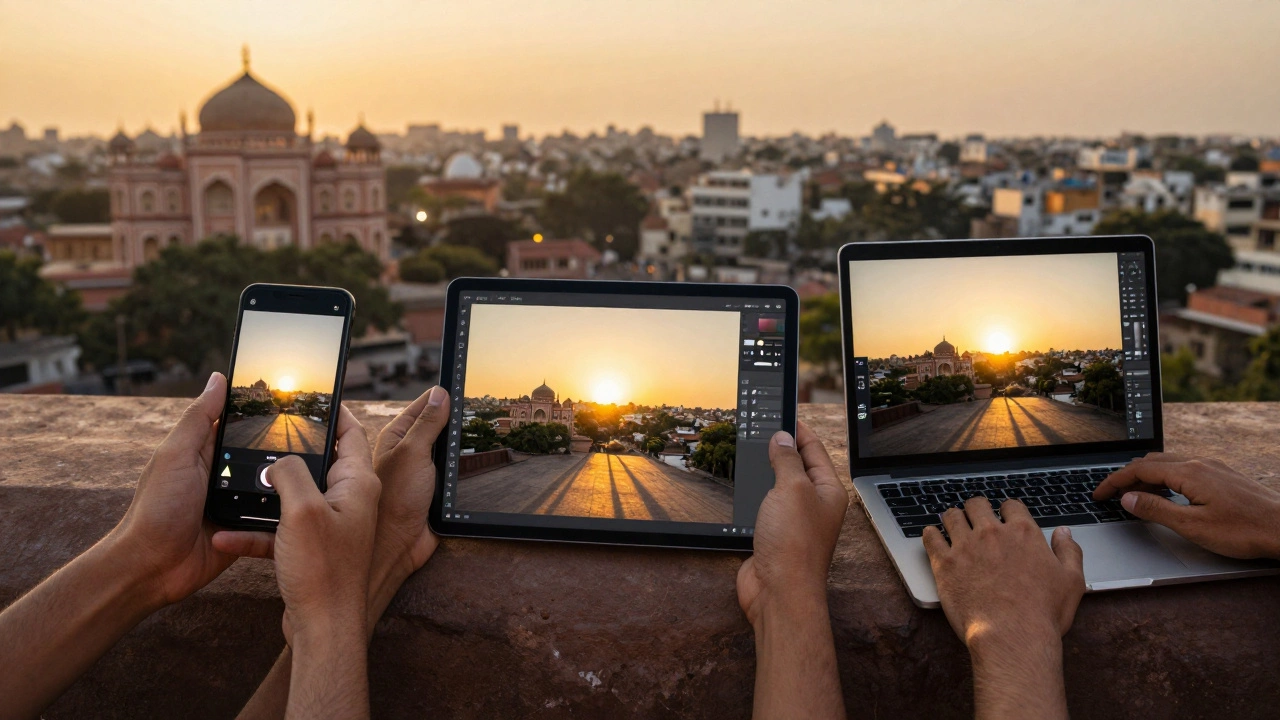
The best apps work on both. Snapseed, Canva, Pixlr, and Darkroom are available on iOS and Android. The only exception is Darkroom, which is iOS-only. Android users get Snapseed as the top alternative.
Android users also have access to Adobe Express (formerly Adobe Spark), which is free and has solid editing tools. It’s not as deep as Snapseed, but it’s good for quick fixes.
Final Tip: Export Settings Matter
Even the best app won’t help if you save your photo wrong. Always export at the highest quality. In Snapseed, choose "Export as JPEG" and set quality to 100%. In Photopea, save as PNG if you need transparency, or JPEG at 95%+ quality.
Don’t use "Optimize for Web" unless you’re uploading to a site that requires small files. For most uses-social media, printing, or sharing-go full quality.
Can I edit photos for free on my phone without downloading anything?
Yes. Photopea works directly in your browser on any phone or tablet. Just go to photopea.com in Chrome or Safari. No sign-up, no download. You can open, edit, and save photos right there. It’s like having Photoshop in your pocket.
Are there any free photo editors that don’t have ads?
Snapseed and Darkroom have zero ads. They’re completely free, no banners, no pop-ups. Canva and Pixlr have ads in their free versions, but they’re not intrusive. You can still use all core tools without paying. Photopea has no ads at all-it’s open source and runs on donations.
Can I use these apps to edit wedding photos?
Absolutely. Many amateur photographers use Snapseed and Photopea to edit wedding photos. You can remove unwanted objects, adjust skin tones, enhance colors, and fix lighting. The tools are professional-grade. The only limit is your skill-not the app.
Is it safe to use free photo editing apps?
Yes, if you stick to trusted names like Google (Snapseed), Adobe (Photopea), and Canva. These companies have strong privacy policies. Avoid apps from unknown developers, especially those asking for access to your contacts or cloud storage. Stick to the five apps listed here-they’re safe and reliable.
Do these apps work on older phones?
Snapseed and Photopea work on phones as old as Android 5.0 and iOS 10. Darkroom needs iOS 14 or later. If your phone is less than five years old, you’ll have no problem. Photopea runs in the browser, so it’s the most compatible option for older devices.
Next Steps
Download Snapseed today. Open a photo you’ve been unhappy with. Try the healing tool on a blemish. Use the selective adjustment to brighten the sky. See how easy it is. Then try Photopea on your laptop. Open a PSD file. Play with layers. You’ll realize you’ve been paying for tools you already had access to-for free.
There’s no reason to spend money on photo editing in 2026. The best tools are already out there. You just need to start using them.